To update old blog posts without losing rankings, start with posts Google already shows people: ones whose clicks are sliding and ones stuck on page two in Search Console. Keep the URL, keep the sections that earn clicks, replace what is out of date, and change the visible date only if the content changed substantially.
Before you touch anything, save the old version and write down its numbers. After you publish, request a recrawl, wait for the page to settle, then compare before and after. If the page drops and stays down, roll back. This guide covers each step, including two that most guides skip: checking what a section ranks for before you cut it, and what to do when an update backfires.
The process at a glance
- Pick posts that are losing clicks or ranking on page two, using Search Console.
- Save a copy of the current version and record its baseline numbers.
- Check which searches each section ranks for, so you don’t cut one that earns clicks.
- Replace outdated statistics, screenshots and facts.
- Fix broken links and add internal links in both directions.
- Fill the gaps searchers still have, and tighten the title, headings and meta description.
- Keep the URL.
- Show a “Last updated” date only if the change is substantial.
- Request a recrawl and promote the post.
- Compare before and after once the page has settled, and roll back if it drops and stays down.
Why update old posts before writing new ones
An old post that already gets impressions has things a new post still has to earn. It’s indexed, Google has tested it against real searches, and other pages may link to it. Improving it starts from that position, not from zero.
You don’t need anyone else’s case study to make this case to your boss or client. Open Search Console > Performance > Search results, set the date range to the last 12 months, open the Pages tab and sort by clicks. Count how many of your top 20 pages were published more than a year ago. That number comes from your own site, so it’s a better argument than any percentage from someone else’s blog.
This guide covers the update itself. If you haven’t yet decided which posts to keep, merge or delete, start with how to do a content audit, then come back with your update list.
Which old posts should you update first?
Update first the posts where a fix is most likely to pay off. That means pages Google already ranks, not pages it ignores. In order:
- Sliding posts that used to earn clicks. These have lost something you once had, and they’re usually the fastest wins.
- Page two posts. These rank for queries at roughly positions 8 to 20, close enough that a better page can move up.
- Steady posts that have gone stale. They still perform, but contain an old year, dead tools or outdated screenshots. Readers notice before rankings do.
Posts with almost no impressions over the past year are a different problem. Updating them rarely helps on its own. Your content audit should decide whether to merge, redirect or delete them.
How to find them in Search Console
- Go to Performance > Search results. Click the date filter, open the Compare tab and choose “Compare last 3 months to previous period”. For seasonal topics, choose “Compare last 3 months year over year” instead.
- Click all four metric tiles (clicks, impressions, CTR, position) so they show as columns.
- Open the Pages tab and click Export > Google Sheets.
- Add a change column for clicks, for example
=(B2-C2)/C2where B is the current period and C the previous one. Sort by it. - Flag pages that lost 20% or more of their clicks and had a meaningful number of clicks before. Pick a floor that suits your site’s size, such as 100 clicks in the previous period. A page that went from 4 clicks to 2 is noise.
- For page two posts, go back to the report, open the Queries tab for the last 3 months and export it. In the sheet, filter position to between 8 and 20 and impressions above a floor you choose. Click a query in Search Console, then open the Pages tab to see which URL ranks for it.
- For each candidate, paste the URL into the URL Inspection bar at the top of Search Console. If the page isn’t indexed, fix that first. A rewrite won’t help a page Google isn’t showing.
One warning about position. The Pages tab shows a page’s average position across every query it appears for, so a page averaging 15 can still rank 3rd for its main query and 40th for dozens of long-tail ones. Always check position at query level before you decide a page is “on page two”.
| Group | How to spot it in Search Console | What to do | Priority |
|---|---|---|---|
| Sliding | Clicks down 20%+ against the previous period, with a real baseline | Find which queries dropped, then update the sections that answer them | First |
| Page two | Queries at position 8 to 20 with steady impressions | Answer the query better, improve the title and add internal links | Second |
| Stale but steady | Clicks flat, but the content mentions an old year, old tools or prices | Refresh facts and screenshots; leave structure alone | Third |
| Ignored | Few or no impressions over 12 months | Decide in your content audit: merge, redirect or delete | Not an update job |
Skipping the spreadsheet
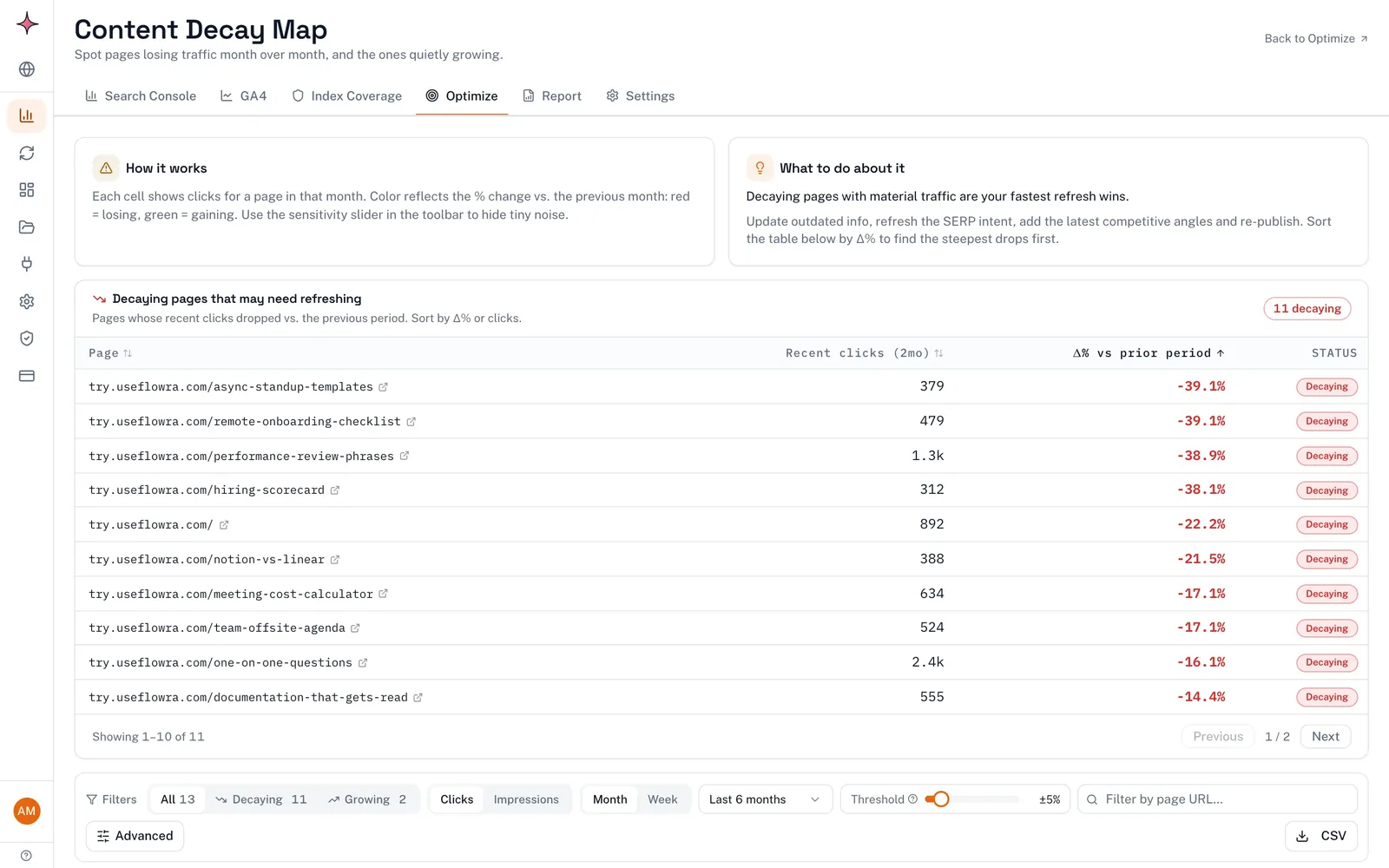
If you’d rather skip the export and formulas, Flowra reads the same Search Console data and does the sorting for you. Its content decay report lists pages whose clicks and impressions are falling against the previous period and puts them in a queue to fix. The Free plan includes that report and the top 5 striking distance queries, so you can try Flowra on the Free plan, connect your Search Console and compare its list with your sheet.
Before you edit: save the old version and record the baseline
This step takes ten minutes and makes everything after it safer. If the update goes wrong, you’ll need both the old text and the old numbers.
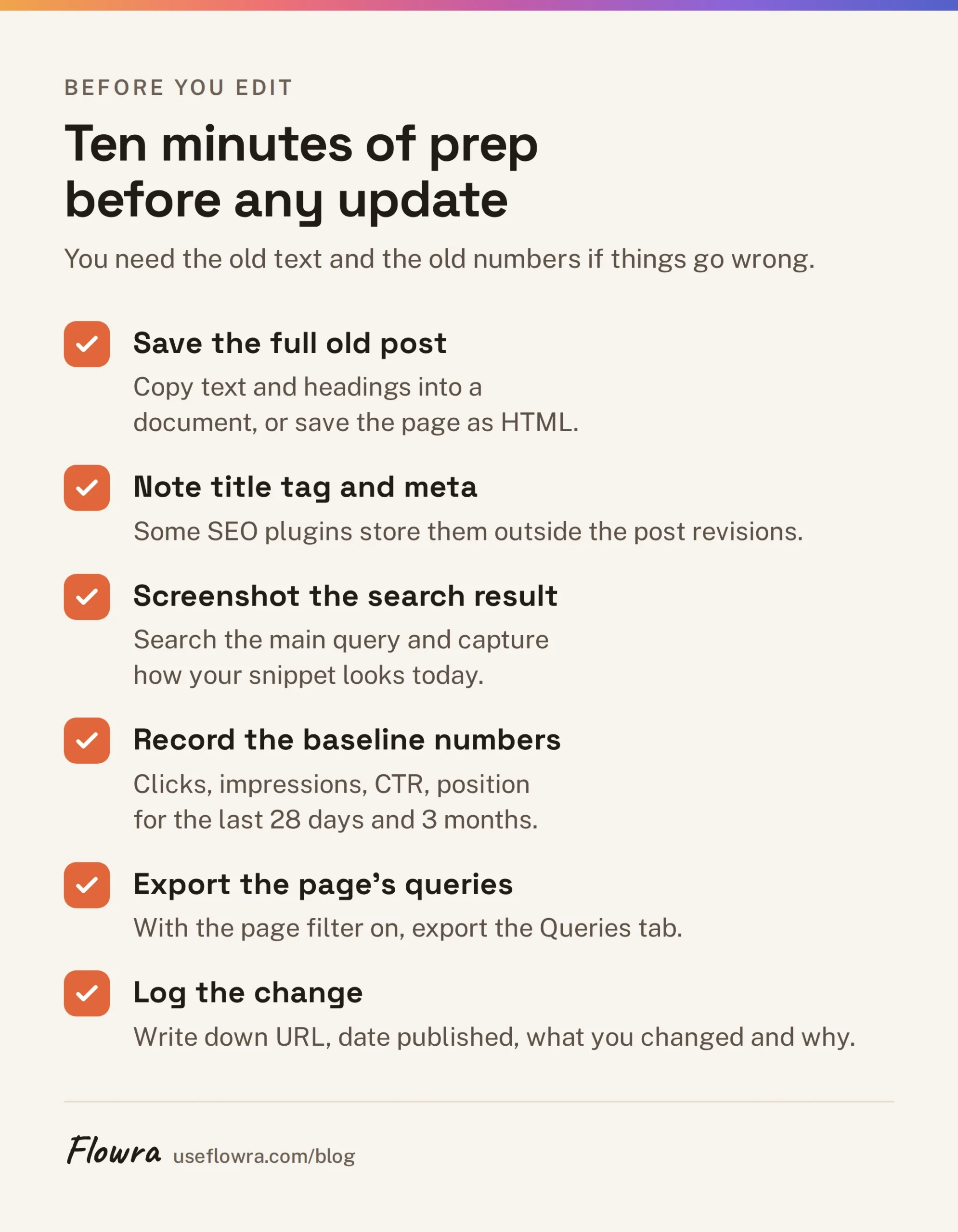
- Save the old version. WordPress keeps revisions by default, but don’t rely on that alone: some hosts limit the number kept. Copy the full post, including headings, into a document, or save the page as HTML. Note the current title tag and meta description too, because some SEO plugins store them outside the post revisions.
- Screenshot the search result. Search for the main query and capture how your snippet looks today.
- Record the numbers. In Search Console, filter Performance by the page (+ Add filter > Page > Exact URL) and note clicks, impressions, CTR and average position for the last 28 days and the last 3 months.
- Export the page’s queries. With the page filter on, open the Queries tab and export it. This is the list you’ll check in the next step, and the list you’ll compare against later.
- Log the change. Keep one sheet for every update: URL, date published, what you changed and why. Without it, you’ll be guessing three months from now which update did what.
Check what each section ranks for before you cut it
This is where most refreshes lose rankings. You trim a section that looks dated or off-topic, and it turns out to be the part of the page that answered a query bringing steady clicks.
Use the query export from the previous step:
- Sort the queries by impressions.
- For each query with meaningful impressions, find the part of the page that answers it. Use Ctrl+F (Cmd+F on a Mac) for the query’s main words.
- Mark each section as “earns traffic” or “no queries found”.
- Rewrite “earns traffic” sections carefully: keep their heading wording and core answer, and improve around them.
- Cut or merge “no queries found” sections only if they don’t help the reader either.
Here is an example of how this plays out. Say you’re refreshing a post on project management tools and want to delete an old section on free Gantt chart templates because it feels off-topic. The Queries tab shows that “free gantt chart template” and two similar queries bring steady impressions to the page, at a better position than the main query. That section stays. You update the templates and maybe give it its own clearer heading.
The reverse also happens. A query in the list that the page doesn’t answer at all is a gap you can fill. That’s covered in step 3 below.
How to update the post, step by step
1. Replace outdated statistics, screenshots and facts
Go through the post line by line and check anything that can expire:
- Statistics. Find the original source for each number. If a newer edition exists, use it and link to it. If you can’t find the source at all, remove the number. Unsourced figures make the whole page less trustworthy.
- Screenshots. Retake any that show an interface that has changed. Readers notice an old menu before they notice an old date.
- Products, prices and features. Check each named tool still exists and still works the way you describe.
- Years. Change “in 2023” phrasing only where the fact itself has changed. Swapping the year without changing the content is the kind of fake freshness Google warns about (more on dates below).
- Advice that’s now wrong. If a recommendation no longer holds, say so plainly. Don’t quietly delete it.
2. Fix broken links and add internal links
Broken outbound links tell readers the page is neglected. Use any link checker, or a browser extension, to list them. Then replace each with the current version of the source, or remove the link if the source is gone.
Then add internal links in both directions:
- From the old post to newer posts. Your blog has probably published related pieces since this post went live. Link to them where they genuinely help the reader.
- From newer posts to the old post. This is the direction people forget. Search your site for posts that mention the topic (
site:yourdomain.com "topic words"in Google works) and add links with descriptive anchor text.
In Search Console, Links > Internal links > Top linked pages shows how many internal links a page has. A post you want to rank but which has only one or two internal links is an easy fix.
3. Fill the gaps searchers still have
Search for the post’s main query and read the top results. Note the questions they answer that your post doesn’t, and the questions none of them answer well.
Then go back to your query export. Queries the page appears for but doesn’t really address are your best clues. For example, if a “how to write a meeting agenda” post gets impressions for “meeting agenda for one on ones” but never mentions one-on-ones, a short section on it is a reasonable addition.
Add sections that answer real questions. Don’t add length for its own sake: a longer page isn’t a better one, and padding makes the useful parts harder to find.
4. Tighten the on-page basics
- Title. Keep the main query near the start. If the page already ranks well for that query and its CTR is normal for its position, change the title as little as possible. If CTR is low for its position, a clearer, more specific title is one of the cheapest fixes there is.
- Headings. Use the words searchers use. A heading like “Getting started” tells Google and the reader nothing. “How to set up a content calendar in Google Sheets” tells both.
- Meta description. Write one if it’s missing, and make it answer the query. Google may rewrite it, but a good one often gets used.
- Intro. Old posts often warm up for three paragraphs before answering anything. Rewrite the opening so the answer comes in the first two or three sentences.
- Readability. Short paragraphs, numbered lists for steps, a table where you compare things.
5. Keep the URL
Changing the URL turns an established page into a new one that Google has to discover, crawl and re-evaluate. Even with a redirect, you add risk for no gain. Keep it, even if it contains an old year such as /best-tools-2023/.
If you really must change it, for example because the slug is actively misleading, use a permanent 301 redirect as Google describes. Update every internal link to point at the new URL, and expect some movement while Google processes the change.
| Change | Safe to make? | Notes |
|---|---|---|
| Replace outdated facts, stats and screenshots | Yes | The core of a good update |
| Add sections that answer real queries | Yes | Check the Queries tab for gaps first |
| Fix broken links, add internal links | Yes | Low risk, often helpful |
| Rewrite the intro to answer faster | Yes | Keep the main query’s wording |
| Change the title | With care | Keep the main query; change more only if CTR is low |
| Rewrite or rename headings that earn traffic | With care | Keep the words that match the queries they rank for |
| Delete sections | Only after checking | Confirm in Search Console that they earn nothing |
| Change the main topic or search intent | No | That’s a new post, not an update |
| Change the URL | Avoid | If unavoidable, 301 redirect and update internal links |
| Bump the publish date without real changes | No | Google explicitly warns against it |
Should you change the publish date when you update a post?
Change the date shown to readers only when the content has substantially changed. Then show it as “Last updated”, and keep the original publish date.
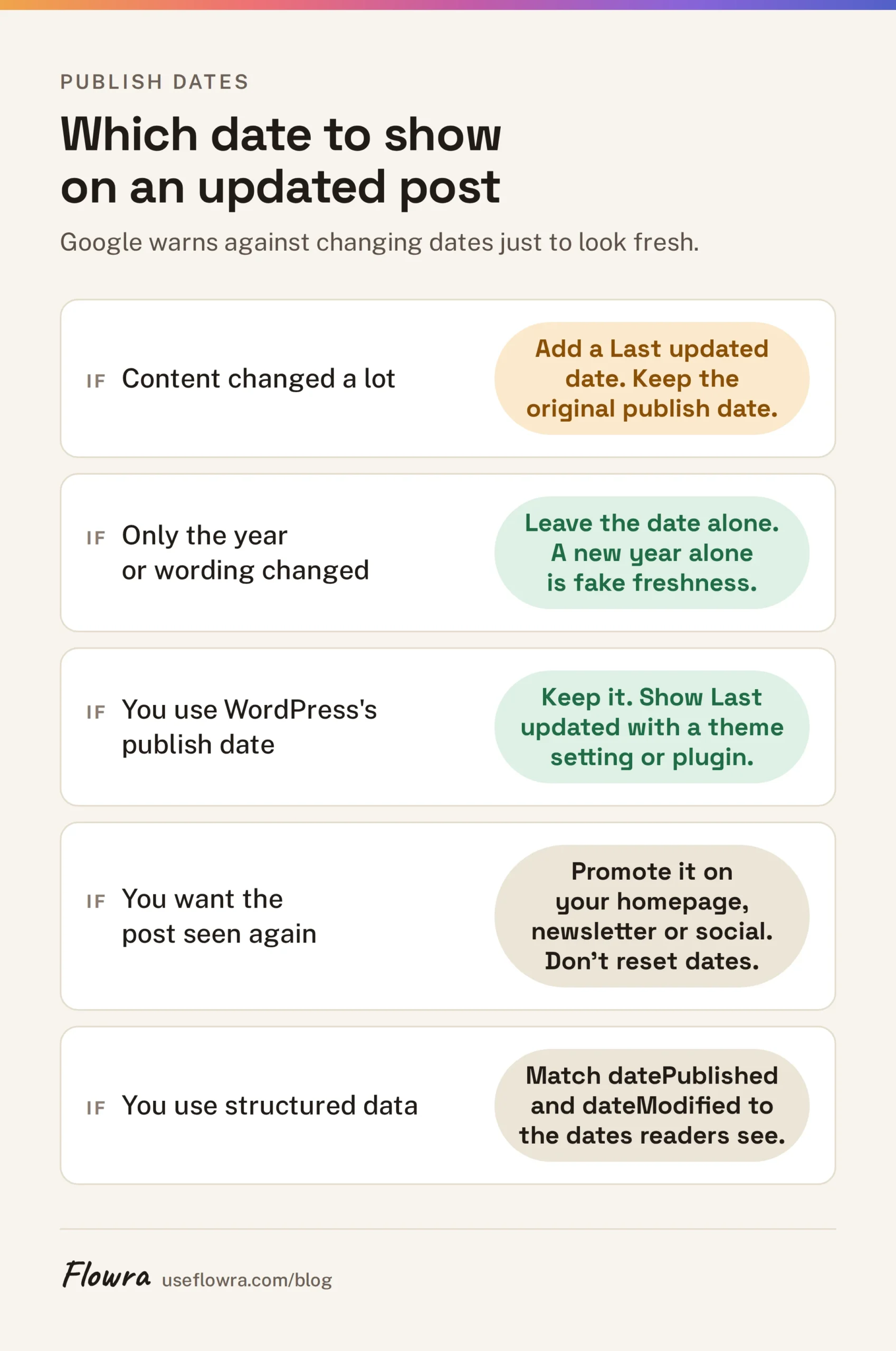
Google is direct about this. Its helpful content guidance asks whether you’re changing page dates to make them seem fresh when the content hasn’t substantially changed, and says that adding or removing content to seem fresh won’t help. Its guidance on publication dates says dates must describe when the page was published or updated, suggests labelling them “Published” or “Last updated”, and says datePublished and dateModified in structured data should match the dates readers see.
The common advice to “republish with today’s date” conflicts with that guidance when the content barely changed. This table sorts it out:
| What you changed | Date readers see | datePublished | dateModified |
|---|---|---|---|
| Typos, a broken link, one small fact | Leave as is | Keep original | May update automatically; that’s fine, but don’t advertise it as an update |
| New stats, new screenshots, a few rewritten sections | Add “Last updated [date]” | Keep original | Today’s date |
| Most of the post rewritten, same topic and URL | “Last updated [date]”, ideally with the original “Published” date too | Keep original | Today’s date |
| A different angle or topic | New post at a new URL, with its own publish date | New date | New date |
In WordPress, the date in the post’s publish settings is usually what themes and SEO plugins treat as the publish date. Changing it makes an old post claim to be new, so leave it alone. Many themes can show a “Last updated” date, either through a theme setting or a small plugin. Check your page source afterwards to confirm the visible date and the structured data agree.
Update in place or republish as a new post?
Update in place: same URL, same post, with a “Last updated” date if the change is substantial. That keeps the page’s links and history, and it’s what Google’s date guidance describes.
“Republishing” usually means updating the post and resetting its publish date so it jumps to the top of your blog feed. The goal there is promotion, not rankings. You can get the same attention without misdating the post: feature it on your blog homepage, in your newsletter or on social media.
| Approach | URL | Date | When to use it |
|---|---|---|---|
| Update in place | Same | “Last updated” if substantial | Almost always |
| Republish with a new publish date | Same | Publish date reset | Rarely; only if nearly everything changed, and even then “Last updated” is more honest |
| New post | New | New | The topic or intent has shifted enough that the old page should stay as it is, or be redirected to the new one |
| Merge into another post | The stronger page’s URL | “Last updated” on the merged page | Two posts compete for the same searches; redirect the weaker one |
After you publish: request a recrawl and promote the post
- Request a recrawl. Paste the URL into URL Inspection in Search Console and click Request indexing. Google’s page on asking Google to recrawl URLs explains this and the sitemap option. A request doesn’t guarantee a quick recrawl, so check “Last crawl” in URL Inspection over the following days.
- Check your sitemap. Most WordPress SEO plugins update the
lastmoddate automatically. Open your sitemap and confirm it. - Link to it from somewhere visible. A blog homepage slot, a “recently updated” list or a link from your newest related post all help crawlers and readers find it.
- Promote it honestly. Send it to your newsletter list or share it as “updated with new data and examples”. Tell readers what changed, which also stops it reading like a recycled post.
- Tell people who’ll care. If you cited someone’s new research or added a tool, let them know. Some will share it.
How to measure whether the update worked
Measuring is the step most refresh guides skip, and without it you can’t tell good updates from lucky timing.
- Wait for the crawl. The clock starts when Google recrawls the page, not when you hit Publish. Check the date in URL Inspection.
- Give it a settling period. Rankings often move around for a while after a recrawl. Ignore the first two weeks or so.
- Compare like with like. In Search Console, filter Performance by the page, then use Date > Compare to set a custom period after the settling window against an equal period before your change. For seasonal topics, compare against the same weeks last year.
- Check the whole site’s movement. Run the same comparison without the page filter. If the whole site fell 10% and your page held steady, the update probably helped. If the site rose 15% and your page rose 5%, it probably didn’t.
- Look at queries, not just totals. Compare the page’s query export against the one you saved before editing. Which queries gained clicks, which lost them, and which are new?
- Note it in your change log. Write down the result, even if it’s “no change”. Patterns across ten updates teach you more than one big win.
This is a before-and-after comparison, not a controlled experiment. Algorithm updates, competitors and seasonality all move numbers too, which is why the site-wide check matters.
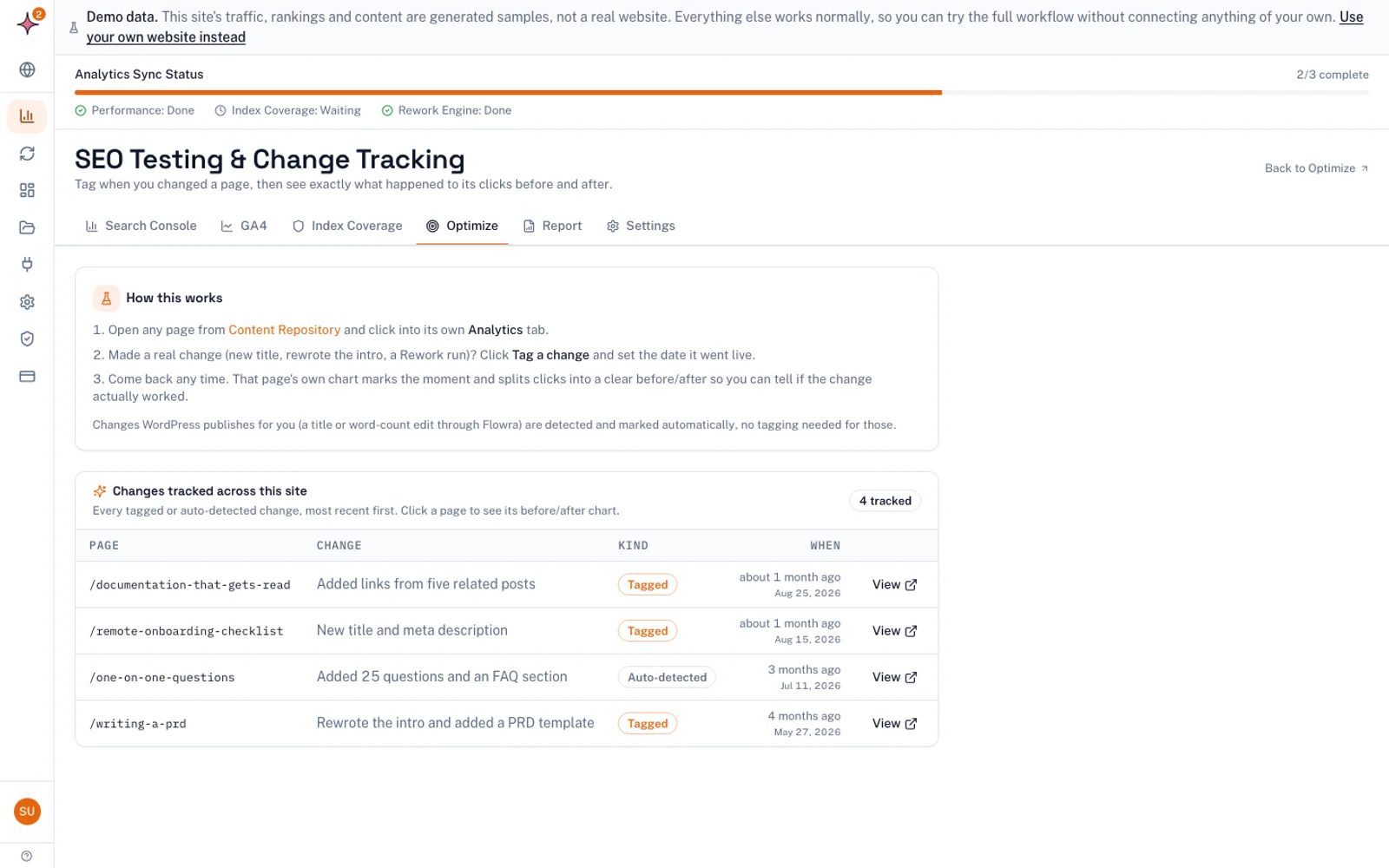
Flowra builds this comparison in. You tag a change on a page, and it compares the period before with the period after. It uses a 14 day settling window and adjusts for the whole site’s movement, so you don’t have to run steps 3 and 4 by hand. It’s still a before-and-after comparison, not a split test.
What to do if rankings drop after an update
Sometimes an update makes a page worse. The goal is to notice it calmly, give it a fair chance, and undo the damage if it’s real.
How to tell whether it’s a real drop
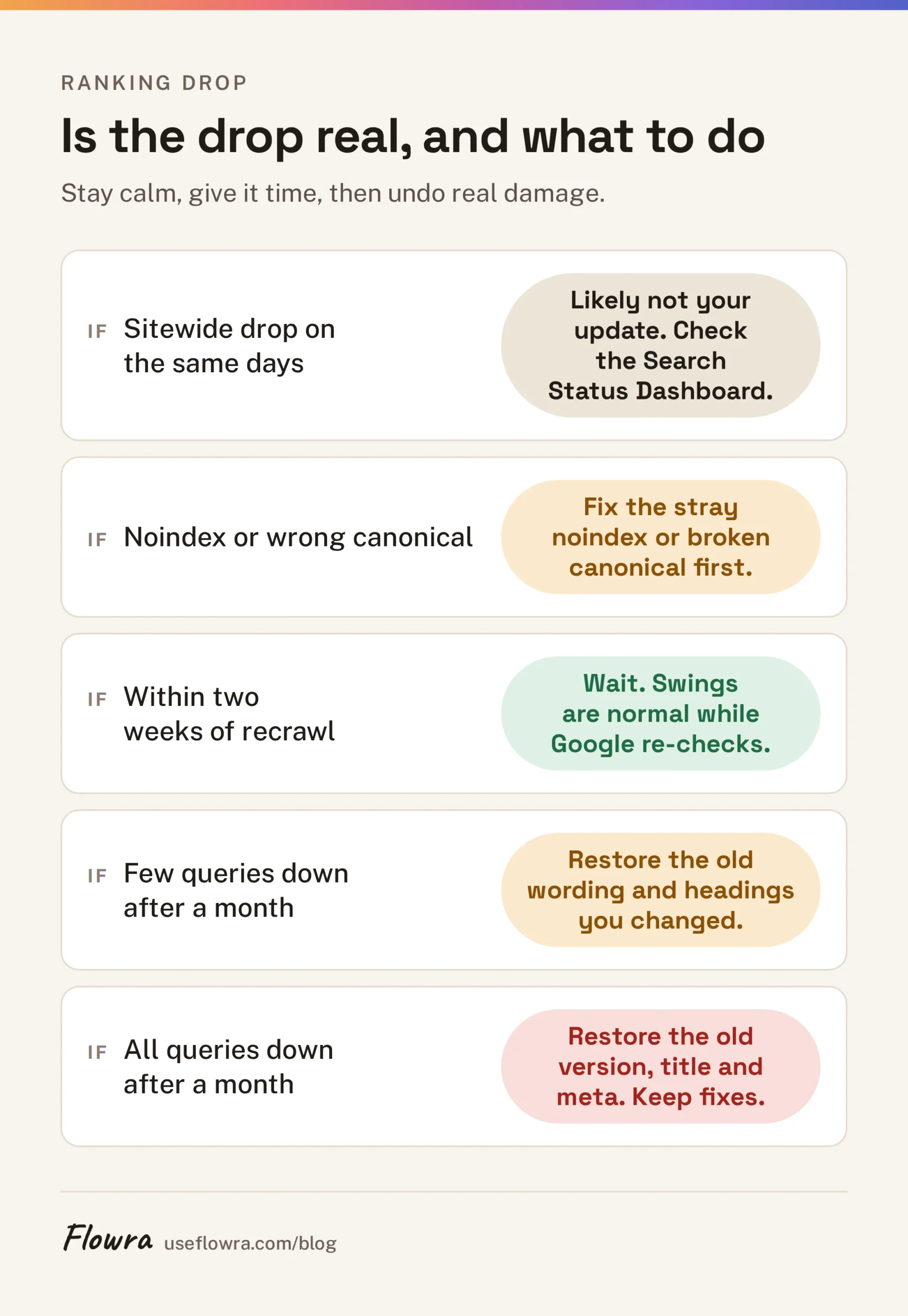
- Check the whole site first. If every page dropped on the same days, the cause probably isn’t your update. Check the Google Search Status Dashboard for a ranking update around those dates.
- Check the page’s index status. In URL Inspection, confirm the page is indexed and that the Google-selected canonical is the URL you expect. A broken canonical tag or an accidental noindex from a plugin can look like a ranking drop.
- Compare query by query. Using your saved export, find which queries lost position or clicks. A drop across everything points to something page-wide (title, intent, indexing). A drop on a few queries usually points to specific sections you changed.
How long to wait before reacting
A useful rule of thumb: don’t react to anything in the first week or two after the recrawl. Day-to-day swings are normal while Google re-evaluates the page.
If the page is still clearly down on the queries it used to win three to four weeks after the recrawl, and the rest of the site isn’t, act. Waiting much longer than that usually just costs you more clicks.
How to roll back
Roll back in the smallest step that’s likely to fix it:
- Partial rollback first. If the lost queries match a section you cut or rewrote, restore that section’s original wording and heading from your saved copy. If you changed the title, restore the old one.
- Full rollback if needed. In the WordPress block editor, open the post, go to the settings sidebar, click Revisions, pick the version from before your update and click Restore this revision. Restore the title tag and meta description from your notes too, if your SEO plugin stores them separately.
- Keep corrections. Don’t put wrong facts or broken links back. Restore structure and wording, not errors.
- Request a recrawl and note the rollback in your change log.
- Measure again with the same settling period.
| What you see | Likely cause | What to try |
|---|---|---|
| Lost clicks on a few specific queries | A section that answered them was cut or reworded | Restore that section’s wording and heading |
| CTR fell, position steady | The new title or meta description is less appealing | Restore or rewrite the title |
| Lost position across most queries | Intent shifted, or the page now reads as a different topic | Restore the original structure, then make smaller changes |
| Page shows as not indexed or with a different canonical | Technical problem introduced with the update | Fix the tag or setting, then request indexing |
| Whole site dropped on the same dates | Algorithm update or site-wide issue | Leave the post alone; investigate site-wide |
How often should you update old blog posts?
Update posts when they need it, not on a calendar for every post. Set the pace by the type of post and by signals in your data.
- Time-sensitive posts (tool roundups, prices, statistics, “best of” lists): check at least once a year, and whenever a fact in them changes.
- Evergreen how-to posts: review roughly once a year. Many will only need new screenshots and links.
- Any post that triggers a signal: a clear click decline, a query sitting on page two, or a reader pointing out an error. Act on it when it shows up.
The habit that works for most teams is a short monthly review. Look at the declining pages and page two queries, then pick a handful to update that month. Don’t touch a post again until its measurement window has passed. Otherwise you can’t tell which change did what.
Does updating old posts help with AI citations?
Possibly, but nobody can promise it. No AI assistant publishes how it picks sources in enough detail to say that an update will earn a citation.
What’s reasonable to expect: assistants that search the web draw on pages that search engines can find, and a page with current facts, clear answers and accurate dates is easier to quote correctly than one with a 2021 price list. Google’s page on AI features and your website says the same SEO best practices apply to its AI features, with no special markup required. So the updates in this guide are the right work for AI search too. There’s no separate trick to add.
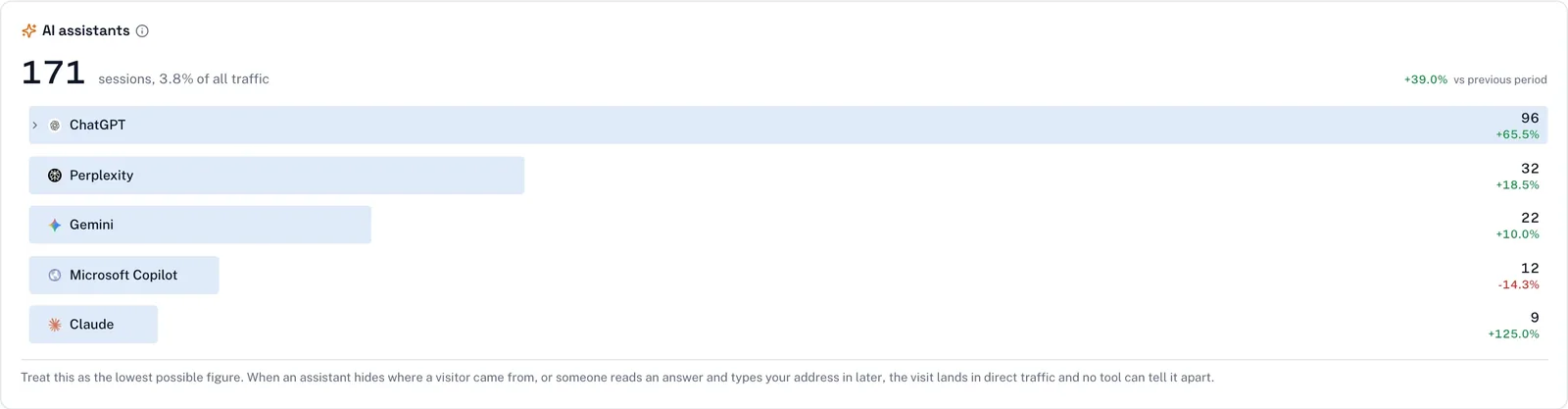
What you can measure is visits that arrive from AI assistants. In GA4, go to Reports > Acquisition > Traffic acquisition, set the primary dimension to Session source / medium, and search for sources such as chatgpt.com, perplexity.ai, gemini.google.com, copilot.microsoft.com and claude.ai. Some assistant traffic arrives without a referrer and shows up as direct, so treat the result as a lower bound.
Flowra’s AI traffic tracking reads those same GA4 referrers and shows them in one card, with the change against the previous period. Like GA4 itself, it counts visits that arrive. It can’t see answers that mentioned your page without sending a click.
What to do this week
- Run the Search Console comparison above and pick three posts: one sliding, one on page two, one stale but steady.
- For each, save the old version, export its queries and write down its baseline.
- Update one post this week using the steps above. Change the visible date only if the change was substantial.
- Request a recrawl, add it to your change log and put a reminder in your calendar for four weeks after the recrawl to compare.
- Update the other two once you’ve seen how the first one behaves.
Frequently asked questions
Which old posts should I update first?
Start with posts that used to earn clicks and are now declining, because you’re recovering traffic you already had. Next, update posts that rank around positions 8 to 20 for queries with steady impressions in Search Console. Posts with almost no impressions over the past year are usually better handled in a content audit than with an update.
Should I change the publish date when I update a post?
Only show a new date if the content has substantially changed, and label it “Last updated” while keeping the original publish date. Google warns against changing dates to make a page seem fresh when the content hasn’t really changed. Your visible dates should also match the datePublished and dateModified values in your structured data.
Can I change the URL or title of an old post?
Keep the URL. Changing it makes Google treat the page as a new one, and even a 301 redirect adds risk for no benefit. You can change the title, but keep the main query near the start, and only make bigger changes if the click-through rate is low for the page’s position.
Should I update in place or republish as a new post?
Update in place in almost every case: same URL, same post, with a “Last updated” date if the change is substantial. Publish a new post only if the topic or search intent has changed enough that it’s really a different page. If you want the attention a fresh post gets, promote the updated post in your newsletter or on your blog homepage instead of resetting its date.
How often should I update old blog posts?
Check time-sensitive posts such as tool lists, prices and statistics at least once a year, and whenever a fact in them changes. Review evergreen posts roughly yearly, and act sooner when Search Console shows a clear decline or a query on page two. Leave an updated post alone until you’ve measured the result.
Will updating old blog posts hurt my rankings?
A careful update rarely hurts, but it can if you cut a section that ranked for a query, change the search intent or change the URL. Before editing, check in Search Console which queries the page ranks for and save a copy of the old version. If the page is still clearly down three to four weeks after Google recrawls it, restore the changed sections or the full previous revision.