Content pruning means reviewing the weak, outdated or overlapping pages on your site and deciding what to do with each one: update it, merge it into a stronger page, redirect it, noindex it or delete it. Despite the name, most pruning is not deletion. The right call for most weak pages is to update or merge them. Remove only pages with no search traffic, no backlinks, no conversions and no other job.
The risk is in the decision, not the delete key. If you remove a page that quietly earns links or sales, you lose both. This guide gives you a rule for each action, a way to build the list from Search Console and GA4, and a way to check afterwards whether pruning helped.
What is content pruning in SEO, and why does it help?
Content pruning is the cleanup step of a content audit. You list every indexable page, see how each performs and whether it still has a purpose, then improve, combine or remove the ones that hold the site back. Blog posts are the usual target. The same thinking applies to old landing pages, tag and archive pages, and thin location or product pages.
It helps for three reasons, and how much each one matters depends on your site’s size.
- Keyword cannibalisation. Two or three posts targeting the same query split clicks and links, and Google may swap between them in the results. Merging them gives searchers one clear answer and gives Google one URL to rank. For most blogs, this is where pruning pays off fastest.
- Quality across the site. Google’s guide to creating helpful, reliable, people-first content is a list of questions about who a page is for and whether it leaves the reader satisfied. Some pages fail them: posts with outdated advice, posts written only to catch a keyword, and posts that repeat each other. Fixing or removing those pages improves what readers and search engines find when they look across your site.
- Crawl budget. Fewer low-value URLs means crawlers spend more time on pages that matter. But Google’s guide to managing crawl budget is aimed at very large sites and sites whose content changes very often. If your blog has a few hundred posts, crawl budget is not your problem. Do not prune for that reason.
Does content pruning improve organic traffic?
It can, but not on its own, and the evidence is weaker than most guides admit.
Pruning raises traffic when it fixes a real problem. Two pages splitting one query become one page that ranks higher. An outdated post, once updated, wins back the clicks it lost. Deleting pages that already get no clicks removes nothing from your traffic, so any gain has to come from the pages that remain.
Treat published case studies with care. Most pruning case studies are reported by the agency or vendor that did the work, cover a few months, and many date from 2018 to 2022. None we have seen compares the pruned site with a similar site left alone. During those months the sites changed other things, Google ran core updates and seasons turned. A headline percentage tells you what happened once. It is not a forecast for your site.
One more caution: age is not a reason to prune. An old post that still answers its question well is doing its job. The questions in Google’s helpful content guide ask whether a page serves its readers, not when it was published. Prune for usefulness, never for the date.
Does Google penalise sites for low-quality pages?
Not for having some weak posts. Manual actions are for breaking Google’s spam policies, such as scaled content abuse or thin affiliate pages. An old post nobody reads does not trigger one. Weak pages hurt you in other ways: they fail to rank, compete with your better pages and, in large numbers, make the site look less useful. That is a ranking problem you fix with better pages, not a penalty you appeal.
How do I know which pages to prune? Start with a content audit
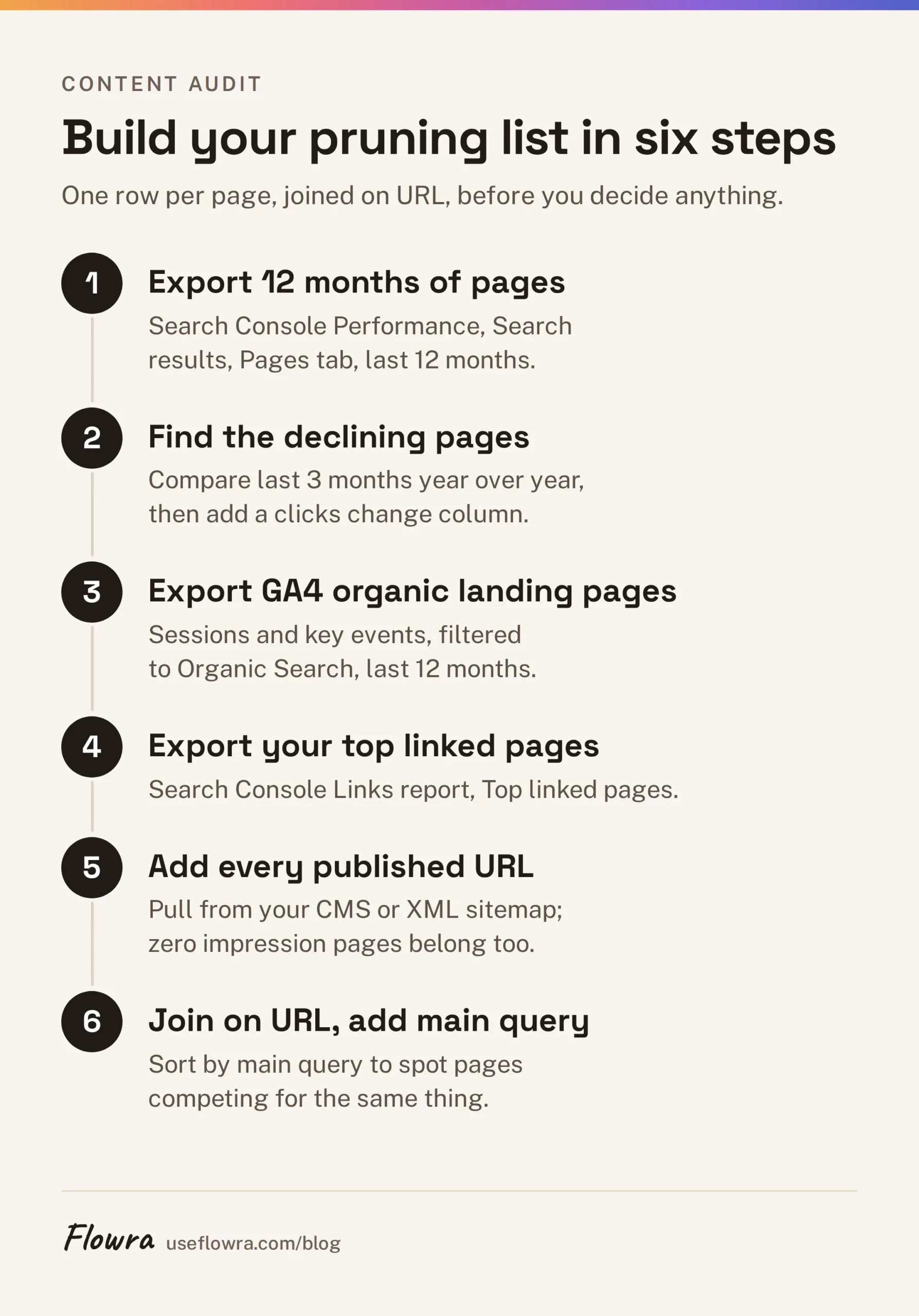
You need a list of every page with the numbers behind it. If you have never built one, here is how to do a content audit from scratch. For pruning, these columns are the minimum.
| Column | Where to get it | Why it matters |
|---|---|---|
| Clicks and impressions, last 12 months | Search Console > Performance > Search results > Pages | Search demand over a full year, including seasonal peaks |
| Change in clicks, last 3 months against the same 3 months a year earlier | Same report: Date > Compare | Which pages are declining, with seasonality removed |
| Average position and top queries | Same report: click a page, then Queries | How close it is to ranking, and for what |
| Organic sessions and key events | GA4 > Reports > Engagement > Landing page | Whether it brings sign-ups, leads or sales |
| External links | Search Console > Links > Top linked pages, or a backlink tool | Links are what you lose by deleting |
| Internal links to it | Your CMS or a site crawler | What to update if the URL changes |
| Publish date, topic, owner | Your CMS | Grouping pages and knowing whom to ask |
To build the list:
- In Search Console, open Performance > Search results, set the range to the last 12 months, open the Pages tab and export. The interface exports up to 1,000 rows. Larger sites need the Search Console API or the bulk data export to BigQuery.
- To see which pages are declining, open the date filter, choose Compare, then Compare last 3 months year over year. Export the Pages tab again and add a column for the change in clicks. Comparing the same months removes seasonality. Search Console only keeps 16 months of performance data, in the interface and the API, so you cannot compare two full 12 month periods. Longer history needs the BigQuery bulk export, and only if it was already running, because it does not fill in the past.
- In GA4, open Reports > Engagement > Landing page and filter the session default channel group to Organic Search. Export sessions and key events (what GA4 used to call conversions) for the last 12 months.
- Export Links > Top linked pages from Search Console.
- Pull every published URL from your CMS or XML sitemap. URLs missing from the Search Console export get zero impressions, and they belong on the list.
- Join everything on URL in one sheet, one row per page.
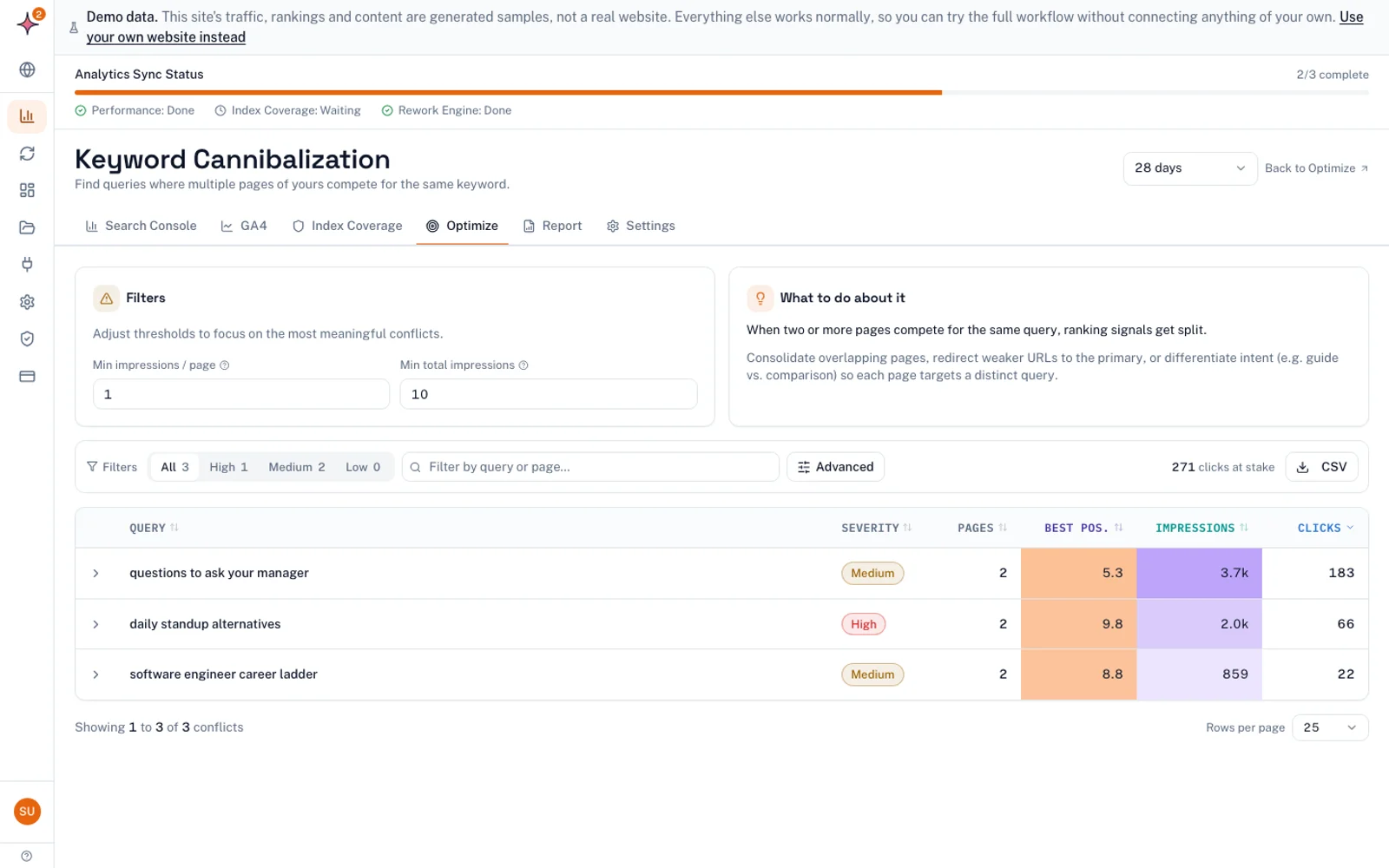
- Add a column for each page’s main query and sort by it to find pages competing for the same thing.
Step 7 is the slow one by hand. In Flowra, the Keyword Cannibalization report (Pro plan) lists queries where more than one of your pages competes, with the clicks at stake. That takes you straight to the merge candidates.
Low traffic is not proof that a page is low quality
This is where most pruning goes wrong. Sort a spreadsheet by clicks and the bottom rows look like dead weight. But page views measure demand, not value. Before you mark a page for removal, check whether it is one of these:
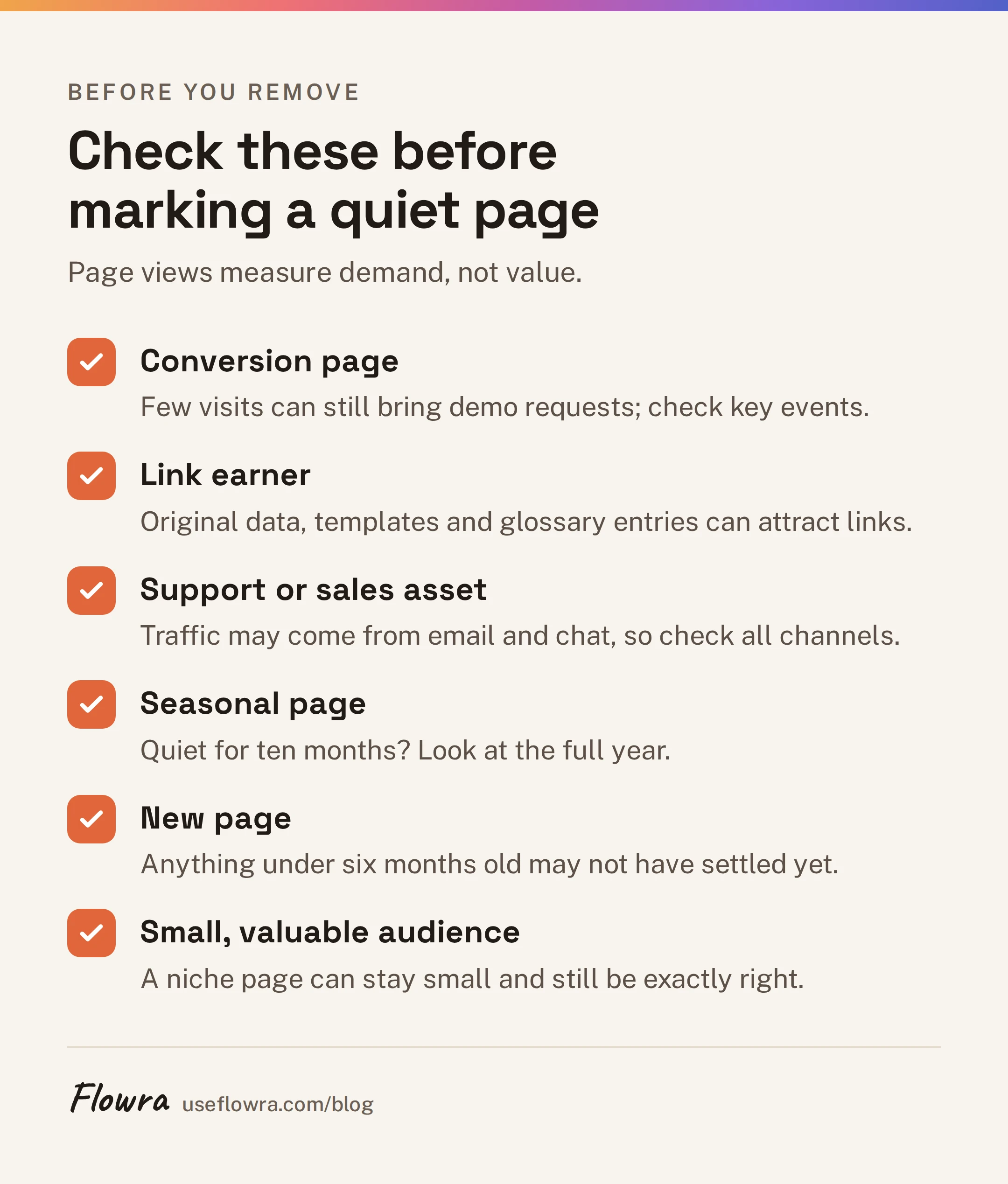
- A conversion page. A comparison post with 30 visits a month and five demo requests is one of your best pages.
- A link earner. Original data, a free template or a glossary entry may get few visits but attract links that support the rest of the site.
- A support or sales asset. Help guides and posts your sales team sends to prospects get their traffic from email and chat, not search. Check all channels.
- A seasonal page. A tax deadline post is quiet for ten months. Look at the full year.
- A new page. Anything under six months old may not have settled yet.
- A small, valuable audience. A page for a niche job title in your market may never get big numbers and still be exactly right.
The reverse is also true. A busy page can still be a pruning candidate if it ranks for something unrelated to your business, or if its advice is now wrong. Use traffic as one input and judge each page on what it does for readers and the business.
Update, merge, redirect, noindex or delete: how to decide
| Action | Use it when | What happens to the URL |
|---|---|---|
| Merge | Two or more pages cover the same intent | Strongest URL stays, others 301 to it |
| Update | The topic still matters and is searched, the page is just dated or thin | Stays live, same URL |
| Noindex | People still need it, searchers do not | Live for visitors, dropped from search |
| Redirect (301) | No future for the page, but a close equivalent exists or it has links | 301 to the closest relevant page |
| Delete (410 or 404) | No traffic worth keeping, no links, no conversions, no replacement | Removed |
Ask these questions in order for each page, and stop at the first yes:
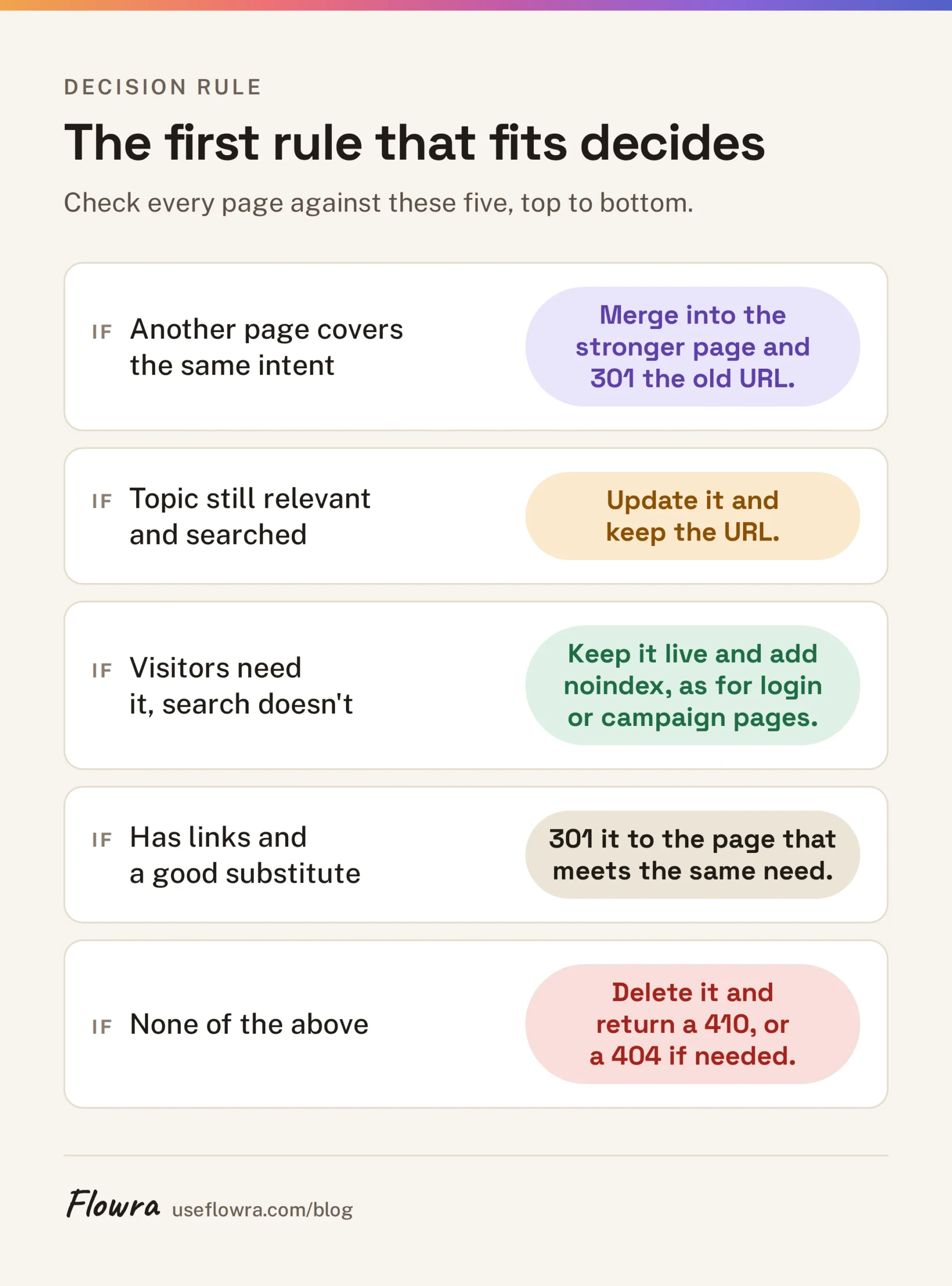
- Does another of your pages cover the same intent? Merge into the stronger one.
- Is the topic still relevant to your business and still searched? Update it.
- Do people need it outside search (customers, sales, legal, site navigation)? Keep it and noindex it.
- Does it have external links, or a page a visitor would be happy to land on instead? 301 it there.
- None of the above? Delete it and return a 410.
The merge question comes first on purpose. Overlapping pages are, by definition, on topics you care about and people search for. If you asked about relevance first, you would update every duplicate and never merge them.
Merge with 301s
The page that survives should be the one with the most clicks and external links, even if another has the better title. Move every useful, unique part of the other pages into it. Then 301 each old URL to the survivor and update internal links to point straight at it. Use a redirect, not a canonical tag. A canonical is a hint that Google can ignore, and it leaves the duplicates live for readers.
Update
Updating is the default for any page on a topic you still care about that no other page covers. To update a page:
- Rewrite the parts that are wrong or dated.
- Answer what the page’s current queries ask. The Queries tab for that page shows them.
- Cut padding.
- Fix the title if it no longer matches the search.
- Add internal links from related pages.
Keep the URL. Only change the date shown to readers if the changes are substantial.
Noindex
Most guides barely mention this middle option. Add a noindex robots meta tag, or the X-Robots-Tag HTTP header. The page stays available to visitors and through internal links, but it drops out of search results. It suits:
- thin tag and archive pages
- internal search results
- old press releases you must keep
- thank-you and gated pages
Google’s guide to blocking indexing with noindex has two rules that matter here. Google must crawl the page to see the tag, so do not also block it in robots.txt. And the page only leaves the index after a recrawl. Do not use noindex to hide a page you should fix.
Redirect (301)
Redirect only to a page that meets the same need. Someone looking for “how to set up X in version 3” can happily land on “how to set up X”. Your homepage will not help them. Mass redirects of unrelated pages to the homepage waste the redirect, and search engines tend to treat them like missing pages anyway. Google’s documentation on redirects explains that it treats a permanent redirect as a strong signal that the new URL should be shown.
Delete: 410 or 404?
Here is the rule the competing advice never states plainly. Use a 301 if there is a relevant page to send people to, or the URL has links worth keeping. Otherwise return a 410. A 404 is fine if your CMS cannot serve a 410.
The difference between the two is small. Google’s documentation on HTTP status codes says URLs returning a 4xx code are removed from the index. A 410 says “gone on purpose”, which is the honest answer for a page you removed deliberately. A 404 says “not found”. Neither harms the rest of your site. The real damage comes from returning either one on a URL with good links, because those links then point at nothing.
A worked example
Here are five pages from the audit of a made-up B2B software blog:
| Page | Last 12 months | External links | Key events | Decision |
|---|---|---|---|---|
| /remote-work-tips-2020 | 40 clicks | 0 | 0 | Merge into /remote-work-guide, 301 |
| /what-is-a-kanban-board | 30 clicks, 9,000 impressions, position 14 | 3 sites | 2 sign-ups | Update: real demand, stuck on page two |
| /tag/productivity | 0 clicks | 0 | 0 | Noindex, keep for navigation |
| /old-product-name-launch | 5 clicks | 12 sites | 0 | 301 to the current product page |
| /webinar-recap-may-2019 | 2 clicks | 0 | 0 | Delete, return 410 |
Two things stand out. The launch post has almost no clicks but plenty of links, so it is redirected, not deleted. And the low-click Kanban page is the biggest opportunity on the list.
When the business changed direction, or a page serves two intents
Two situations break the simple rules.
Your business changed direction. Perhaps you moved from agencies to in-house teams, or dropped a product line. Old posts may still get good traffic, but from people you no longer serve. Ask three questions:
- Does a current page already cover the useful part? Merge or 301.
- Can the topic be reframed for your current audience? Update it.
- Does it only attract the wrong visitors and have no links? Delete it.
Expect total traffic to fall when off-target pages go. Agree in advance that leads and sign-ups are the measure, and write that down so nobody panics in month two.
A page serves two intents. A post called “project management software” might rank for both “what is project management software” and “best project management software”. The first searcher wants a definition, the second a comparison, and one page rarely does both well. Check the page’s queries in Search Console. If they fall into two clear groups, split the page in two, each matched to one intent. If one group matters far more to you, refocus the page on it and let the other go.
How to prune without losing traffic
The technical part is easy. Keeping it safe is about process.
Get buy-in first. Share the list, with the proposed action for each page, with sales, support, product, your writers and, where relevant, legal. Sales may send a “low traffic” case study to every prospect. Support may link to an old guide from hundreds of tickets. A one-week comment period on a shared sheet prevents most mistakes.
Work in batches. Start with the clearest cases, a few dozen pages at most. Ship them, then wait four to six weeks before the next batch. If something goes wrong, you know which change caused it and you only have a small set to undo.
Back up first. Export the content and metadata of every page you will delete or merge.
Reuse what you remove. A page you prune from search can still be useful:
- Pull its best data or quotes into the merged guide.
- Turn a dated how-to into a help doc.
- Send an evergreen idea as a newsletter item.
- Give sales a cleaned-up version.
Clean up after each batch:
- Point internal links straight at the final URL, not through a redirect.
- Remove deleted and redirected URLs from your XML sitemap.
- Fix redirect chains (A to B to C) so A goes straight to C.
- Keep redirects in place. Google’s guide to site moves with URL changes recommends keeping them for at least a year. For a merged post, there is little reason to ever remove them.
- Log every URL, action, destination and date. You need this log to measure results.
Find pages to prune without the spreadsheet
The manual method works. The trouble is that joining several exports every quarter is the step teams stop doing. To skip the spreadsheet, connect Search Console to Flowra. The Free plan includes the content decay report: connect Search Console and it lists the pages whose clicks and impressions are falling. That is your shortlist for “update” in the decision rule above.
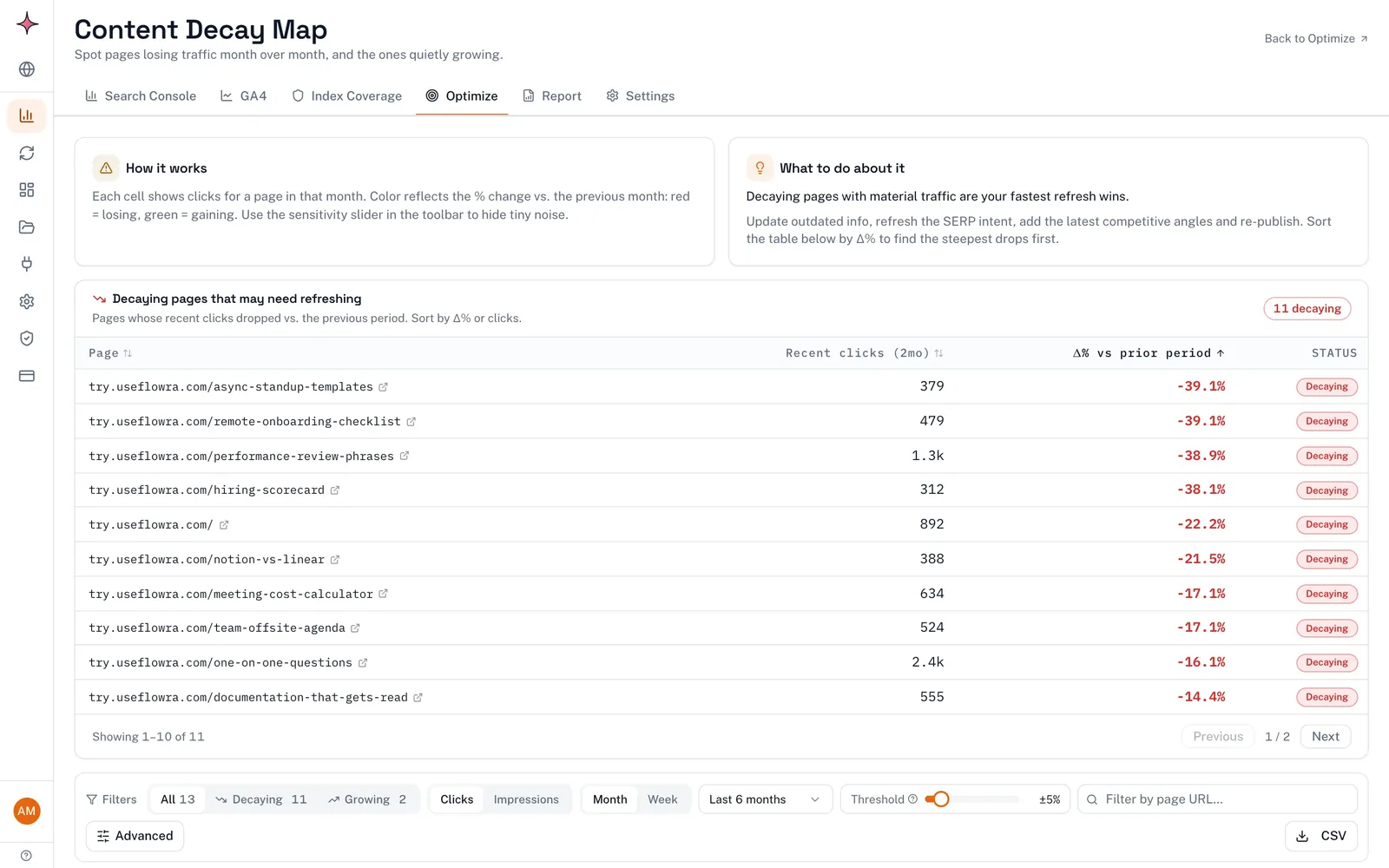
It does not replace your judgement, and it does not hold backlink data, so check links in Search Console before you delete anything. Connect Search Console and see which pages are decaying.
How often should you prune content?
How often depends on how much you publish and how fast your topics date.
- Small sites (under about 100 posts): one full review a year is enough.
- Blogs publishing weekly: a full prune once a year, plus a quarterly check of the pages losing the most clicks.
- Large publishers and ecommerce sites: a little every month, because thousands of pages date at different speeds.
Also prune after events that make a batch of pages outdated at once: a rebrand, a retired product, a pricing change or a market you left. Do not prune in reaction to one bad week, or to a core update you have not yet understood.
How to measure the impact of content pruning
Decide what success means before you start, and measure each batch separately.
- Wait four to eight weeks after each batch so redirects are recrawled and merged pages settle.
- Compare equal periods before and after, and check the same weeks last year to rule out seasonality. Search Console’s 16 month limit still covers this, as long as you measure within a few months of the change.
- Check the receiving pages. For each merge, compare clicks to the surviving URL afterwards with the combined clicks of all merged pages before. This number tells you whether the merge worked.
- Check the business result: key events from organic landing pages in GA4, not just total clicks.
- Check indexing. In Search Console, Indexing > Pages should show counts under “Page with redirect”, “Not found (404)” and “Excluded by ‘noindex’ tag” rising in line with your changes. Indexed pages you meant to keep should not drop.
- Use a rough baseline. Track a group of similar pages you did not touch. If they rose just as much, the season or Google caused the change, not your pruning. This is not a controlled experiment, but it beats a raw before-and-after.
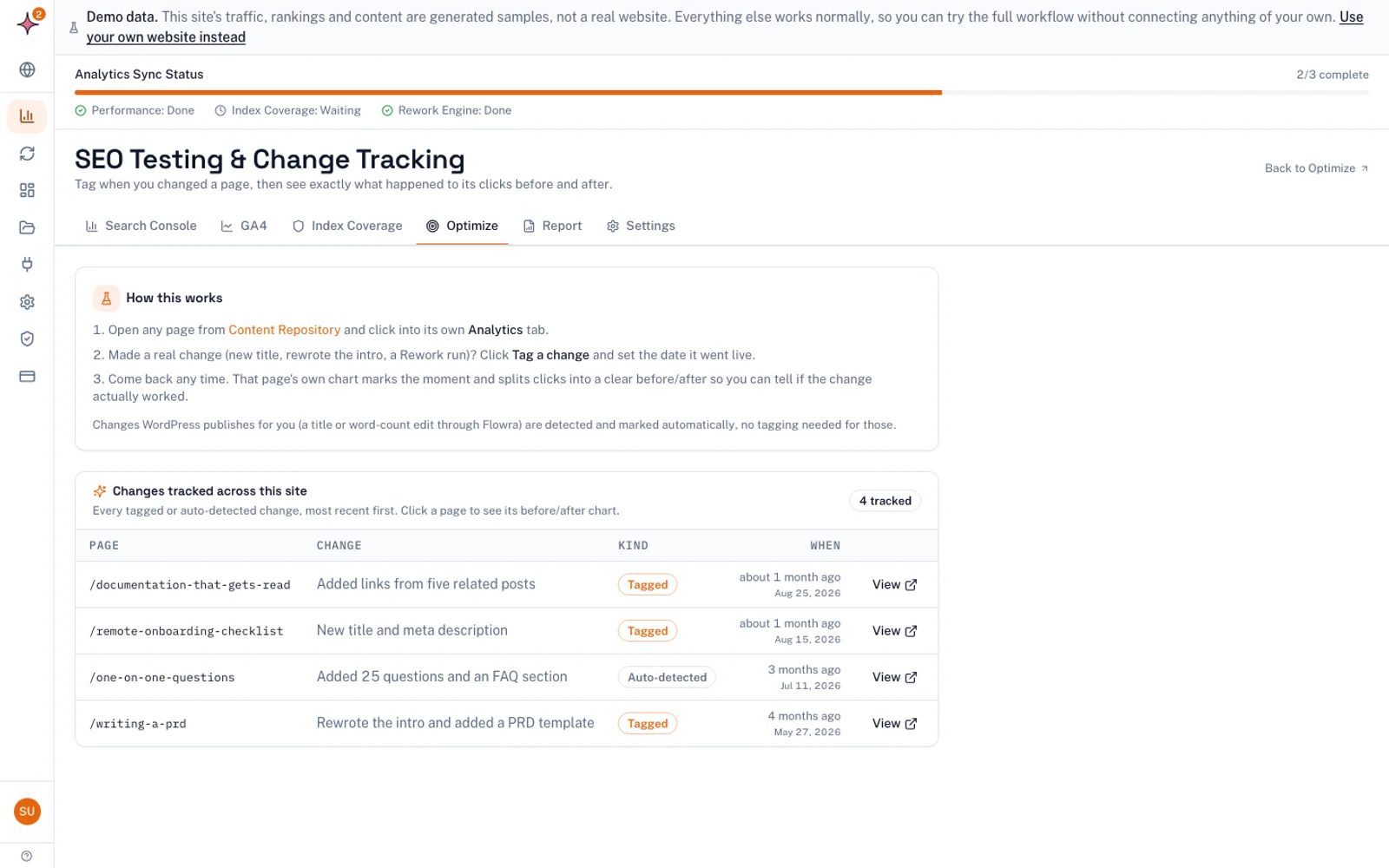
Tag a change on a page and Flowra compares the period before and after, with a 14 day settling window and an adjustment for the whole site’s movement. That saves the before-and-after comparison by hand. You still check last year and your own control pages. It is a before-and-after comparison, not a split test, so it shows what happened after the change rather than proving the change caused it.
What to do next
This week, open Search Console > Performance > Search results, choose Compare last 3 months year over year in the date filter, and export the Pages tab. Mark the 20 pages that lost the most clicks and check none of them overlaps another page. They are your first batch, and the safest one: no deletions and no redirects, just better pages. Once that batch has settled, come back to the merges and deletions with the decision rule above.
Frequently asked questions
What is content pruning in SEO?
Content pruning means reviewing underperforming, outdated or overlapping pages and deciding, page by page, whether to update, merge, redirect, noindex or delete them. The goal is a site where every indexed page is useful to the people searching for it. Most of the work is updating and merging, not deleting.
Should I delete old blog posts that get no traffic?
Not just because they are old or quiet. First check whether the post has external links, drives conversions, gets traffic from email or sales, or is seasonal. Delete it only if none of those apply and no other page covers the topic. Otherwise, update it, merge it or redirect it.
When should I use 410 instead of 301?
Use a 301 when there is a closely related page a visitor would be glad to land on, or when the old URL has backlinks worth keeping. Use a 410 when you removed the page on purpose and there is no relevant replacement. A 404 works almost the same way if your CMS cannot serve a 410.
How often should you prune content?
Most blogs that publish weekly need a full prune once a year, plus a quarterly check of pages losing clicks. Small sites can review yearly or less. Large publishers and ecommerce sites usually prune a little every month.
Does Google penalise sites for low-quality pages?
Not with a penalty for having some weak posts. Manual actions are for breaking Google’s spam policies, such as scaled content abuse. Weak pages hurt by failing to rank and competing with your better pages, which you fix by improving or consolidating them.
Does content pruning improve organic traffic?
It can, when it fixes a real problem such as cannibalisation or outdated pages that lost their rankings. Deleting pages that already get no clicks does not raise traffic by itself. Most published case studies are self-reported, with no comparison group, so measure your own results batch by batch.