To use Google Search Console for SEO, verify your site, submit your sitemap, then spend most of your time in two reports. The Performance report shows which searches your pages appear for, how often people click and your average position. The Page Indexing report shows which pages Google left out of its index and why.
The SEO value comes from turning those reports into a list of pages to write, fix, merge or delete. This guide covers setup and what each report is for as of 2026: there is no Mobile Usability report and no Universal Analytics link any more. It also explains the data limits that mislead people, and gives five plays a content team can run every month to find its next wins.
What is Google Search Console, and is it free?
Google Search Console (GSC) is Google’s free tool for site owners. It reports data that only Google has: the searches your pages appeared for, the impressions and clicks they got, which URLs are indexed, and any penalties or security problems Google found on your site.
It costs nothing and has no paid tier. The limits are in the data, not in a price plan. They are covered further down.
What it does not do:
- It does not show competitors’ data.
- It shows no search volume for keywords you don’t rank for.
- It does not count traffic from other search engines. Bing has its own Bing Webmaster Tools.
How to set up Google Search Console and verify your site
Domain property or URL-prefix property?
When you add a site, Google asks which kind of property you want.
| Domain property | URL-prefix property | |
|---|---|---|
| What it covers | Every subdomain and protocol: http, https, www, blog. and so on | Only URLs that start with the exact prefix, such as https://www.example.com/blog/ |
| How you verify | A DNS TXT record only | HTML file, HTML meta tag, Google Analytics, Google Tag Manager or DNS |
| Best for | Your main view of the whole site | A section you report on separately, or a site where you can’t edit DNS |
Use a Domain property as your main one. Then add URL-prefix properties for big sections you want to analyse alone, such as /blog/. Each property has its own tables, so the row limits explained later apply to that section only.
Verify ownership
- Go to Google Search Console and sign in with the Google account your team will manage it from.
- Click Add property, choose Domain, and type your domain without
https://orwww, for exampleexample.com. - Copy the TXT record Google shows you.
- In your DNS provider (your registrar, Cloudflare or your host’s DNS panel), add a TXT record at the root of the domain with that value.
- Go back to Search Console and click Verify. DNS changes can take a while to spread. If verification fails, wait and try again before changing anything.
Leave the TXT record in place. If someone removes it later, you lose verified ownership.
Submit your sitemap
A sitemap tells Google which URLs you care about. It does not force them into the index, but it speeds up discovery and gives you a clean list to check indexing against.
- Find your sitemap URL. Common ones are
/sitemap.xml,/sitemap_index.xmlor, on WordPress without an SEO plugin,/wp-sitemap.xml. - In Search Console, open Indexing > Sitemaps.
- Paste the URL into Add a new sitemap and click Submit.
- Check that the status says Success. “Couldn’t fetch” usually means a wrong URL, a redirect or a block.
Also add a Sitemap: line to your robots.txt so other crawlers find it.
Add your team: users and permissions
Open Settings > Users and permissions > Add user. There are three levels:
- Owner: full control, including adding and removing users. Verified owners verified the site themselves. Delegated owners were added by a verified owner.
- Full user: sees all data and can take most actions.
- Restricted user: can view most data but not change things.
Give writers and clients Restricted access, give your SEO lead Full access, and keep the list of Owners short. When someone leaves, remove them. If they were a verified owner, also remove their verification token or record.
How to read the Performance report
Open Performance > Search results. The default date range is the last 3 months, and the newest data can be preliminary, according to Google’s Performance report help page. Tick the four boxes at the top to show all metrics on the chart.
| Metric | What it means |
|---|---|
| Clicks | Clicks from a Google search result to your site |
| Impressions | Times a link to your site appeared in a result someone loaded |
| CTR | Clicks divided by impressions |
| Average position | The average position of the topmost result from your site, across all the impressions in the range |
Google defines CTR as clicks ÷ impressions and average position as the average of your topmost result’s position, in its own documentation of the report. Lower position numbers are better: position 1 is the top.
The two-click move behind most of this guide
Under the chart are tabs: Queries, Pages, Countries, Devices, Search appearance, Dates. Clicking a row filters the whole report by it. That gives you the move you’ll use most:
- Click a query, then open the Pages tab. You see which of your pages show for that search.
- Click a page, then open the Queries tab. You see every search that page appears for.
Filters worth knowing
- Add filter > Query > Custom (regex) lets you match patterns. For example,
^(how|what|why|which|can|does|is|should)returns question queries. - Add filter > Page > URLs containing
/blog/limits the report to one section. - Search type defaults to Web. Image, Video and News are separate.
- Date > Compare puts two periods side by side. You’ll use it to find pages losing traffic.
Newer features most guides miss
- 24-hour view. The date filter now has a 24-hour option with hourly data. It’s useful on the day you publish or after a site change, when you don’t want to wait for the daily figures.
- Branded and non-branded queries. Google has added a filter that splits brand searches from the rest in some properties. If yours doesn’t have it, build your own: add a Query filter set to Doesn’t match regex, with your brand terms, for example
acme|acme app|acmeapp. Non-branded clicks are the ones your content earned. - Annotations. You can add notes to the Performance chart on the date something changed, such as a migration, a template change or a big refresh. Use them. In six months nobody remembers why the line moved.
How AI Overviews and AI Mode show up in the data
Clicks and impressions from AI Overviews and AI Mode are counted in the Performance report under the Web search type. There is no separate filter, so you can’t isolate them.
All the links inside an AI Overview share the position of the overview block itself. So a page can show a high position for a query and still get few clicks.
The pattern to watch for: impressions steady or rising, CTR falling, position unchanged, mostly on informational queries. When you see it, search the query yourself before you blame your title.
Visits from ChatGPT, Perplexity and other assistants don’t appear in Search Console at all. Look for them in GA4 referrals.
GSC data limits: what the numbers can and can’t tell you
Most bad GSC decisions come from treating the numbers as complete. They are not. These limits are from Google’s guide to Search Console data:
- Tables stop at 1,000 rows. Search Console stores your top data rows, not every row. The API returns more, per the same Google page.
- Rare queries are hidden for privacy. Queries made a very small number of times aren’t tracked, as Google explains. The chart totals still include their clicks, so your query rows will add up to less than the total at the top. That gap is normal, not a bug.
- The data lags. Collected data should be available in 2 to 3 days, new sites may take up to a week, and times are in California time, per Google. Don’t judge last Tuesday’s change on Wednesday.
- Indexing lists are capped. The Page Indexing report gives full totals but may list only up to 1,000 URLs per issue, according to Google.
- Average position blends very different results. A page at position 3 for one query and position 45 for another can average out to a number that describes neither. Read position query by query, never only at page level.
If your site outgrows the 1,000-row tables, pull data through the Search Console API, the Looker Studio connector or the bulk data export to BigQuery.
Does Search Console show keyword rankings?
Not the way a rank tracker does. GSC reports average position across real searches, which vary by location, device and personalisation. A rank tracker checks a fixed list of keywords from a set location on a schedule.
| GSC average position | Rank tracker | |
|---|---|---|
| Source | Real searches by real people | Scheduled checks from a chosen location and device |
| Keywords covered | Every query you got impressions for | Only the keywords you add |
| Competitors | Not shown | Usually shown |
| Cost | Free | Paid |
| Best for | Discovering what you rank for and how it trends | Watching a fixed set of priority keywords day by day |
For a content team, GSC is the better discovery tool: it finds queries you never thought to track. A rank tracker helps when you need a daily view of a few priority keywords against named competitors.
Search Console vs Google Analytics: why the numbers don’t match
GSC clicks and GA4 organic sessions will never be equal. That’s expected.
| Reason | What happens |
|---|---|
| Different things counted | GSC counts clicks on Google results. GA4 counts sessions where its tag loaded. |
| Consent and blockers | People who decline cookies or block scripts can click in GSC and never appear in GA4. |
| Fast exits | Someone who clicks and leaves before the page loads counts as a click but not a session. |
| Different sources | GA4’s organic channel includes Bing, DuckDuckGo and others. GSC is Google only. |
| Time zones | GSC uses California time. Your GA4 property uses whatever time zone you set. |
| Hidden queries | GSC hides rare queries in its tables. GA4 has no query data of its own. |
Use GSC for what happened in Google search, before the click. Use GA4 for what people did after they arrived.
How to link Search Console to GA4
- In GA4, open Admin > Product links > Search Console links.
- Click Link and choose your Search Console property. You need to be a verified owner in Search Console and have edit rights in GA4.
- Choose the web stream, then submit.
- In Reports > Library, publish the Search Console collection so the Queries and Google organic search traffic reports appear in your menu.
Linking puts GSC numbers inside GA4 next to engagement data. It doesn’t make the two sets of numbers match.
How to fix indexing errors: Page Indexing and URL Inspection
Open Indexing > Pages. The chart shows indexed and not-indexed pages. Below it, Why pages aren’t indexed groups the excluded URLs by reason.
Not every excluded page is a problem. Redirects, alternate pages with a proper canonical, and tag pages you deliberately noindexed are all fine. The question to ask is simple: is a page you want in search on this list?
| Reason | What it means | What to do |
|---|---|---|
| Crawled, currently not indexed | Google fetched the page and chose not to index it | Improve or merge thin pages, add internal links from strong pages |
| Discovered, currently not indexed | Google knows the URL but hasn’t crawled it yet | Add internal links, make sure it’s in the sitemap, check server speed |
| Excluded by ‘noindex’ tag | The page asks not to be indexed | Check it’s deliberate; plugins and staging settings often cause this |
| Duplicate without user-selected canonical | Google sees near-copies and no canonical | Set a canonical, or consolidate the pages |
| Duplicate, Google chose different canonical than user | Google ignored your canonical | Make the pages more distinct, or point everything at one URL |
| Not found (404) or Soft 404 | The page is missing, or looks empty | Redirect if there’s a replacement, fix if it should exist, ignore if it’s gone on purpose |
| Blocked by robots.txt | A robots.txt rule stops crawling | Edit the rule if the page should be crawled |
| Server error (5xx) | Your server failed when Google called | Talk to your host or developer |
Work through the list like this:
- In Indexing > Pages, click a reason that contains pages you care about.
- Open the example URLs and pick a few important ones.
- Paste each into the URL Inspection bar at the top of Search Console.
- Fix the cause on your site.
- Go back to the reason in the Page Indexing report and click Validate fix. Google rechecks the affected URLs, which can take a while.
URL Inspection tells you whether a URL is on Google, which canonical Google chose, when it was last crawled and which sitemap referred it.
- Test live URL checks the version on your server right now, which is handy after a fix.
- Request indexing asks Google to crawl the page. It is quota limited and guarantees nothing, so use it for new or changed pages that matter, not your whole site.
The other reports: links, experience, security and removals
Links report
Open Links at the bottom of the left menu. You see:
- External links: top linked pages, top linking sites and top linking text.
- Internal links: your most linked pages.
It’s a sample, not a full list, and it gives no authority scores. For a content team, its main use is the internal links table in play 5 below.
Core Web Vitals and HTTPS
Experience > Core Web Vitals uses field data from real Chrome users. It groups similar URLs and rates them on LCP (loading), INP (responsiveness) and CLS (layout shift), separately for mobile and desktop. Low-traffic pages may not appear at all.
Problems usually sit in a template, so fix the template, then validate. The HTTPS report flags pages served over plain http.
The old Mobile Usability report was retired at the end of 2023. Guides that still send you there are out of date.
Rich result reports
Under Enhancements (and Shopping for product sites) there is one report per structured data type Google found, such as Breadcrumbs, Product snippets, Review snippets or Videos. Errors stop a rich result from showing. Warnings don’t.
Google has retired several rich result types, including the sitelinks search box. FAQ rich results now show only for a small set of authoritative sites. Before you add markup an older guide recommends, check that Google still supports it.
Manual actions and security issues
Security & Manual Actions should read “No issues detected” in both reports.
- Manual actions: a human reviewer at Google applied one. The report names the issue and the affected pages. Fix them, then click Request review with a clear note of what you changed.
- Security issues: hacked content, malware or deceptive pages. Fix these before anything else.
Search Console also emails owners when either appears.
Removals
Indexing > Removals has three tabs:
- Temporary removals hides a URL from Google results for a limited time. It does not delete the page from the index. For a permanent removal, delete the page (404 or 410), add
noindex, or put it behind a login. - Outdated content shows requests made by the public.
- SafeSearch filtering shows pages people reported as adult content.
GSC for SEO: five plays that find content wins
The reports above tell you what’s broken. These plays tell you what to write or change next. Run them on the last 3 months with the Web search type, and export to Google Sheets when a table gets long. Export is at the top right of the Performance report.
1. Push near-miss queries onto page one
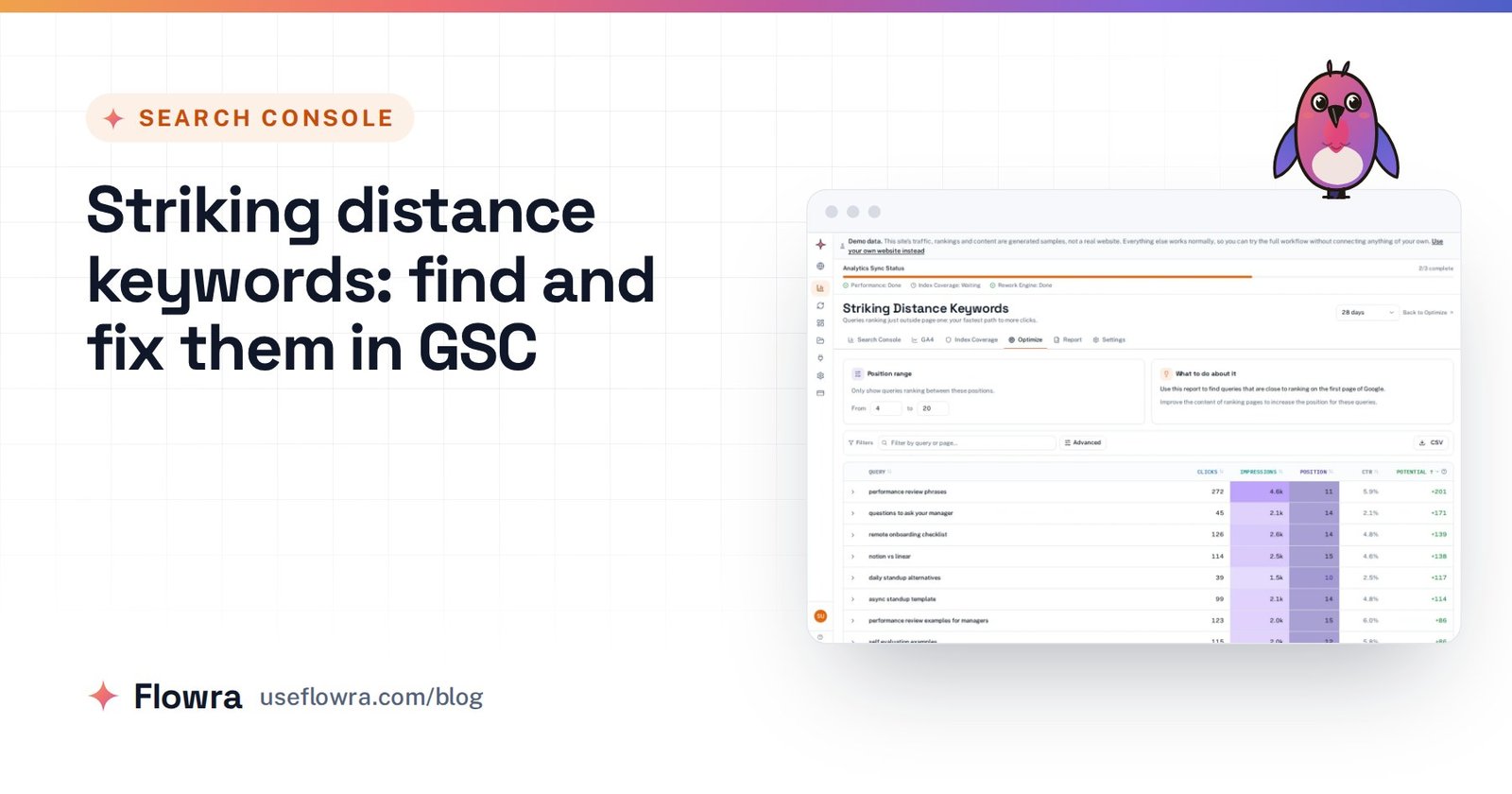
Google already pays attention to queries where you average position 8 to 20, often called striking distance keywords. A better section or a few internal links can be enough to move them up.
- Open Performance > Search results, set the last 3 months and tick Average position.
- On the Queries tab, export the table.
- In the sheet, filter position between 8 and 20, and impressions above a floor that suits your site (100 is a fair start for a small blog).
- Sort by impressions, highest first.
- For each query, go back to GSC, click the query and open the Pages tab to see which page ranks.
- Decide what to do:
- If the page is about that query, strengthen it: add a heading that answers it directly, update the facts, and add links to it from related posts.
- If the page only touches the topic, the query probably deserves its own article. That’s your next brief.
2. Fix page-one results nobody clicks
A page in the top five with a weak CTR is losing clicks it has already earned.
- From the same export, filter position 1 to 5.
- Sort by CTR, lowest first, ignoring queries with very few impressions.
- Search each query yourself and look at what sits above and around you.
Here’s an example of what’s at stake. A guide sits at average position 3 for a query with 5,000 impressions and 100 clicks in a quarter, so its CTR is 2.0%. If a sharper title and description lift CTR to 3.0%, the same 5,000 impressions bring 150 clicks. That’s 50 more a quarter with no change in ranking.
Check the results page before rewriting anything. If an AI Overview, video carousel or featured snippet takes the top of the page, your title isn’t the main problem.
If your result is plain, rewrite the title so it uses the searcher’s words and promises the specific answer. Then write a meta description that finishes the thought.
For question queries where you rank a few places down, put a short, direct answer right under a heading phrased as the question. That’s the format Google lifts into snippets. Flowra’s featured snippet opportunities report lists question queries where a page already ranks near the top, so you can skip the regex filter for this step.
Add an annotation on the day you change the title. Then compare equal periods before and after, skipping the first few days while Google picks up the change.
3. Refresh pages that are losing clicks
- Open Date > Compare and set the last 3 months against the previous 3 months. For seasonal topics, compare the same 3 months year over year instead.
- Open the Pages tab and sort by the clicks difference column, so the biggest losers come first.
- Click a losing page, then open the Queries tab to see which searches lost the clicks.
- Diagnose before you write:
- Position fell: a competitor overtook you or your page went stale. Refresh it.
- Impressions fell, position held: demand dropped. There may be nothing to fix.
- CTR fell, position held: the results page changed (often an AI Overview), or a rival’s title is better. Check the page in Google.
- Refresh the page. Update facts and dates, answer the queries that now show up, cut sections nobody needs, and keep the same URL.
4. Find pages competing for the same query (cannibalisation)
When two of your pages split one query, Google often rotates between them, and neither ranks as well as one strong page would.
- Take your top 50 queries by impressions.
- Click each one and open the Pages tab.
- Note any query where two or more pages have meaningful impressions.
- For each pair, decide:
- Same intent: merge into the stronger page and 301 redirect the weaker one.
- Different intent: make the difference clear in titles and headings, then link from the weaker page to the stronger one using the query as anchor text.
Two pages on page one for different intents is fine. Leave those alone.
Clicking through 50 queries one by one is slow. Our free keyword cannibalization checker reads your Search Console query and page data and lists searches split across two or more pages, with a severity and the page to keep. It runs in the browser with no sign-up, and it also lists page-one searches with a low click-through rate, which covers play 2.
5. Strengthen internal links and prune dead weight
Internal links:
- Open Links > Internal links > Top linked pages and export.
- Compare that list with your top pages by clicks and impressions in Performance.
- Find pages that earn impressions but have few internal links. Add links to them from related posts, using descriptive anchor text.
Pruning:
- In Performance, set Last 12 months and export the Pages tab.
- Mark pages with zero clicks and very few impressions.
- Compare the export with your sitemap. Pages missing from the export got no impressions at all.
- For each one, choose:
- Update it if the topic still matters.
- Merge it into a stronger page, with a redirect.
- Delete it if it has nothing worth keeping.
Don’t prune on traffic alone. Product pages, legal pages and posts published last month get few clicks for good reasons.
Turn query data into briefs
You can write your briefs from the same data.
- Filter queries by a topic word, for example
Query contains "onboarding". - Every query with impressions is a question real people asked.
- Queries where you sit at position 20 or lower usually mean you have no page that really answers them. Those are new articles.
- Queries a page already ranks for become its H2s when you refresh it.
A weekly Search Console routine for content teams
- Weekly, 10 minutes: compare the last 7 days with the previous 7 days in Performance. Note any big moves and add annotations for changes you shipped.
- Weekly: check Indexing > Pages for a jump in not-indexed pages. Inspect anything you published that week.
- Monthly: run plays 1 to 5. Turn each finding into a card on your content board: a new brief, a refresh, a title rewrite, a merge or a removal.
- Monthly: compare the pages you changed last month against the same period before the change.
- Quarterly: check Links, Core Web Vitals, the Enhancements reports, and Security & Manual Actions.
Skip the spreadsheet: connect Search Console to Flowra
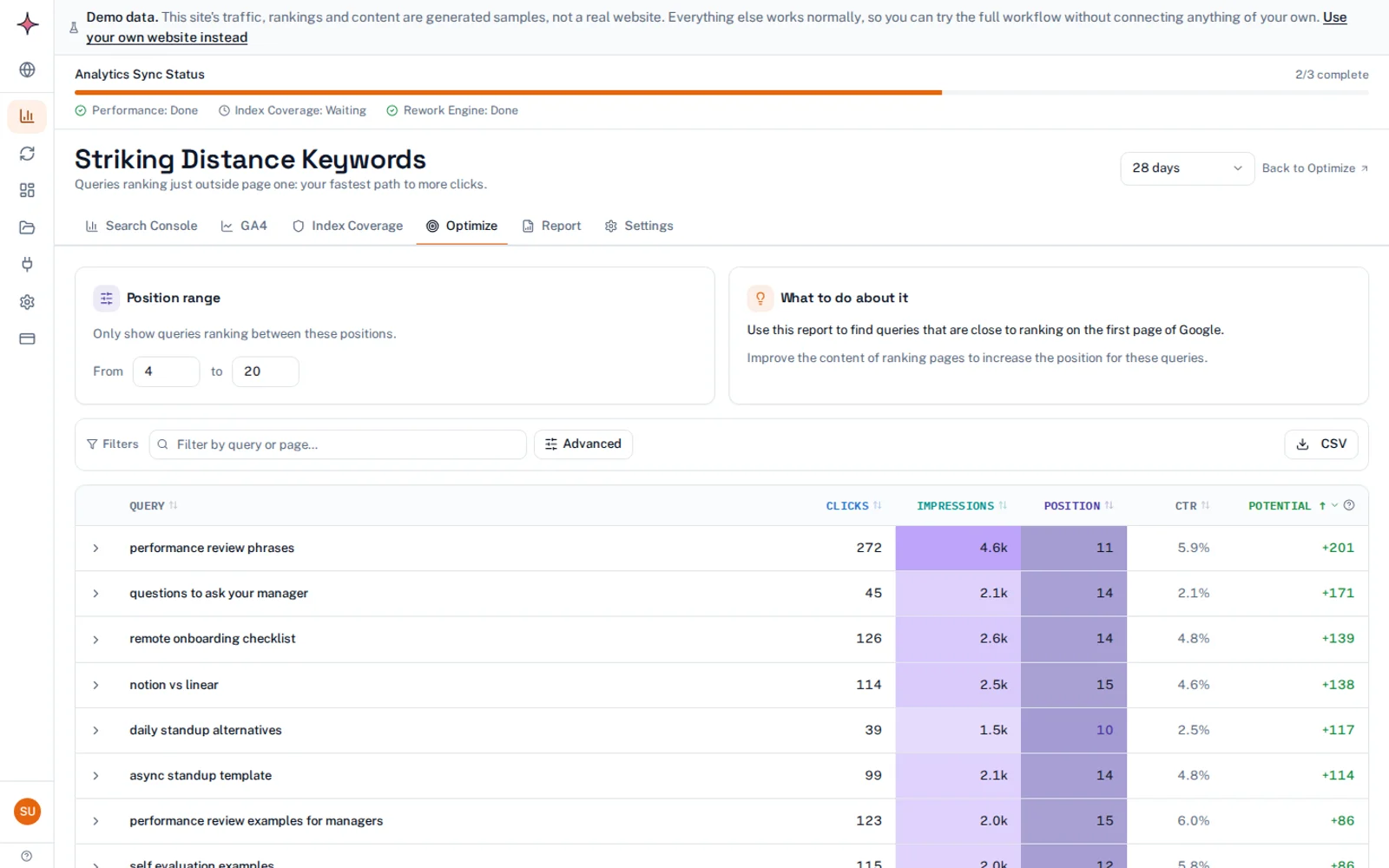
Doing all of this by hand means running the same exports and sheet filters every month. Flowra connects to your site’s Search Console, GA4 and WordPress and builds the lists for plays 1 and 3 in its SEO monitoring dashboard: queries just off page one, and pages whose clicks and impressions are falling. The Free plan covers one site and includes the content decay report and your top five striking distance queries. The full striking distance report is part of analytics on Starter. If you want to try play 1 without connecting anything, the free striking distance calculator shows which queries sit just off page one and what moving up could be worth.
Whichever way you do it, start this week. Verify a Domain property, submit your sitemap, then run play 1 on the last 3 months and pick three queries to work on. To get that list without the spreadsheet, start on the Free plan.
Frequently asked questions
Is Google Search Console free?
Yes. Google Search Console is free for anyone who can verify they own or manage a site, and there is no paid version. The limits are in the data it shows, such as 1,000-row tables and hidden rare queries, not in a pricing plan.
How often is Search Console data updated?
Collected data should be available in 2 to 3 days, and new sites may take up to a week, according to Google. The most recent days can be preliminary and may still change. For same-day checks after publishing, use the 24-hour view in the Performance report’s date filter.
Does Google Search Console show keyword rankings?
It shows average position, not a fixed ranking. Average position is the average of your topmost result’s position across all the real searches where your site appeared. A rank tracker instead checks chosen keywords from one location on a schedule, so the two numbers rarely match exactly.
Why don’t Search Console and Google Analytics numbers match?
They count different things. Search Console counts clicks on Google results, while GA4 counts sessions where its tag loaded, so cookie refusals, ad blockers and fast exits all widen the gap. GA4’s organic traffic also includes other search engines, and the two tools may use different time zones.
Should I rely on Search Console data for SEO decisions?
Yes, for direction and for anything about Google search, since it’s the only data that comes from Google itself. Treat it as a large sample rather than a full count: it stores top rows, hides rare queries for privacy and arrives a few days late. Compare equal periods and look for clear trends rather than reacting to small daily changes.