A content audit template is a spreadsheet with one row per page. Each row records what the page is, how it performs, and what you will do with it. This one is free with no sign-up: a single .xlsx file that opens in Excel and Google Sheets. A formula suggests an action for every page, so you are not judging hundreds of rows from scratch.
Download the content audit template (.xlsx)
Below you will find what each column means, where to get the data, how the decision formula works, and which columns to add for a migration or for buying-journey planning. If you want the full process rather than just the sheet, see our guide on how to do a content audit.
What is in the content audit template
The file has three tabs:
- Start here: how to use the file.
- Audit: one row per URL. This is where you work.
- Summary: the number of pages per decision, so you can see the size of the job.
To use it in Google Sheets, upload the file to Google Drive and open it with Google Sheets, or use File > Import in a blank sheet. There is no “make a copy” link. The .xlsx file is the template.
These are the columns on the Audit tab:
| Column | What goes in it | Where to get it |
|---|---|---|
| URL | The full page address | CMS export or a crawler |
| Title | The page title | CMS export or a crawler |
| Published | First publish date | CMS export |
| Last updated | Date of the last real edit | CMS export |
| Clicks last 12 months | Organic clicks | Search Console > Performance > Search results, Pages tab |
| Clicks previous 12 months | Clicks in the 12 months before that | Saved exports or GA4 (see the limits below) |
| Change in clicks | The percentage change between the two periods | Worked out from the two click columns |
| Impressions | Last 12 months | Search Console |
| Average position | Last 12 months | Search Console |
| Conversions (GA4) | Key events from organic sessions that landed on the page | GA4 |
| Referring domains | Unique sites linking to the page | A backlink tool, or Search Console’s Links report |
| Main keyword | The query the page should rank for | Search Console, Queries tab filtered to the page |
| Another page targets this keyword? | Whether another of your pages goes after the same query | Your own keyword list |
| Suggested action | The formula’s output | Leave it alone |
| Your decision | Dropdown: Keep, Refresh, Merge, Redirect, Remove | You |
| Why | One line of reasoning | You |
| Owner | Who does the follow-up work | You |
| Due | Deadline | You |
Decide what the audit is for before you collect data
Every column is data someone has to pull, so pick one goal and collect only what serves it. Audits usually stall when the sheet gets too wide to finish.
- Win back traffic and prune weak pages. The template is built for this as it comes.
- Prepare a migration or redesign. You need every URL plus a few extra columns, listed further down.
- Plan new content. You need a stage column to find gaps in the buying journey.
Do you need to audit every page? For a migration, yes, because any URL without a decision can break. For a traffic audit, start with one section or with the pages that had impressions. Then add the URLs a crawl finds that Search Console never reported. Pages with zero impressions do not appear in Search Console at all, and they are often your removal candidates.
Where to get the data, and the export limits to plan for
- Search Console. Go to Performance > Search results, set the date range, open the Pages tab and export. The table in the interface stops at 1,000 rows. Larger sites need the API, which returns up to 50,000 rows per day per search type.
- The 16 month problem. Search Console keeps only 16 months of performance data, so “Clicks previous 12 months” needs exports you saved earlier. If you have none, fill both click columns with organic sessions per landing page from GA4. GA4’s data retention setting limits explorations, not standard reports. Whichever source you pick, use the same source and the same window length in both columns, or the percentage means nothing.
- GA4. Conversions are now called key events. Open Reports > Engagement > Landing page and filter to the Organic Search channel group. Use landing page, not page path: page path credits every page a buyer passed through.
- A crawler. Screaming Frog or a similar crawler gives you title tags, meta descriptions, word counts and status codes. It also finds URLs that have never earned an impression.
- Backlinks. Ahrefs or Semrush give referring domains per URL. For a free option, use Search Console’s Links report > Top linked pages. It is not a complete count, but it is enough to spot pages whose links are worth keeping.
Visibility in AI search is harder to measure. Google counts appearances in AI Overviews and AI Mode inside the normal web search figures in Search Console, without reporting them separately. Visits from ChatGPT, Perplexity and similar assistants show up in GA4 as referrals, so add an “AI referrals” column if they matter to you. Answers that mention you without sending a click show up in none of these tools.

How the Suggested action formula decides
The formula checks four rules in order. The first rule that matches wins:
- Merge when another page targets the same keyword.
- Review, redirect or remove when the page has under 10 clicks in 12 months, no conversions, no referring domains, and was published more than six months ago.
- Refresh when clicks fell 30% or more against the previous 12 months.
- Keep everything else.
Merge comes first because refreshing one of two competing pages rarely fixes the competition. The removal rule needs all four conditions, so a page with links or conversions is never flagged for removal. The six month condition gives new pages time to rank.
Here is how the rules play out on four sample pages:
| Page | Clicks last 12 months | Previous 12 months | Conversions | Referring domains | Another page targets keyword? | Suggested action |
|---|---|---|---|---|---|---|
| /blog/email-tips-2019 | 4 | 31 | 0 | 0 | No | Review, redirect or remove |
| /blog/onboarding-checklist | 2,100 | 3,400 | 12 | 9 | No | Refresh |
| /blog/onboarding-guide | 640 | 700 | 3 | 2 | Yes | Merge |
| /pricing-faq | 6 | 5 | 4 | 0 | No | Keep |
The file itself comes with five invented example rows on example.com, which show each outcome. Delete them before you paste in your own data.
The suggestion is a starting point. Make the real call in the Your decision dropdown. Fill in Why whenever your decision differs from the suggestion, because that line is what a colleague will read six months later. Owner and Due turn the sheet into a work list, and the Summary tab shows how many refreshes, merges and removals you have committed to.
Keep, refresh, merge, redirect or remove: how to choose
| Decision | When | What to do |
|---|---|---|
| Keep | Traffic is steady or growing, or the page converts | Leave it. Check facts once a year |
| Refresh | Clicks fell 30% or more and the topic still matters | Rewrite the sections that lost ground, update facts, recheck what ranks now |
| Merge | Two pages target the same keyword | Combine the best parts into the URL with more clicks and links, then 301 the other |
| Redirect | Little traffic but has referring domains, or a close replacement exists | 301 to the most relevant live page |
| Remove | No clicks, conversions or links, and no close replacement | Delete it, take it out of the sitemap and remove internal links to it |
Links decide merge versus delete. A weak page with referring domains should almost never be deleted outright. Merge or redirect it so those links still point somewhere useful. A weak page that converts is a Keep or a Refresh, whatever its clicks. Before you remove anything, ask the page owner, because some pages exist for sales, support or legal reasons.
Columns to add for migrations, quality scores and journey gaps
Migration or redesign. Add Content type, Title tag, Meta description, Word count, Status code and New URL. Paste them from your crawl export, so every old URL has a destination before launch.

Quality scores. Numbers do not tell you whether a page is any good. Add columns for clarity, accuracy, how up to date the page is, and fit with search intent, each scored 1 to 5. Write down what a 1 and a 5 mean so two people score the same way. A low total helps you choose between Refresh and Remove when the traffic numbers are borderline.
CTR. If you add it, CTR is clicks divided by impressions. A low CTR at a good average position usually points to a weak title or meta description, not weak content.
Buying-journey gaps. Add Topic and Stage columns, with Awareness, Consideration and Decision as the stages. Then build a pivot table with topics as rows and stages as columns. Empty cells are your gaps. For example, a topic with twelve awareness posts and no comparison or pricing page tells you what to write next.
Skip the spreadsheet: connect Search Console to Flowra
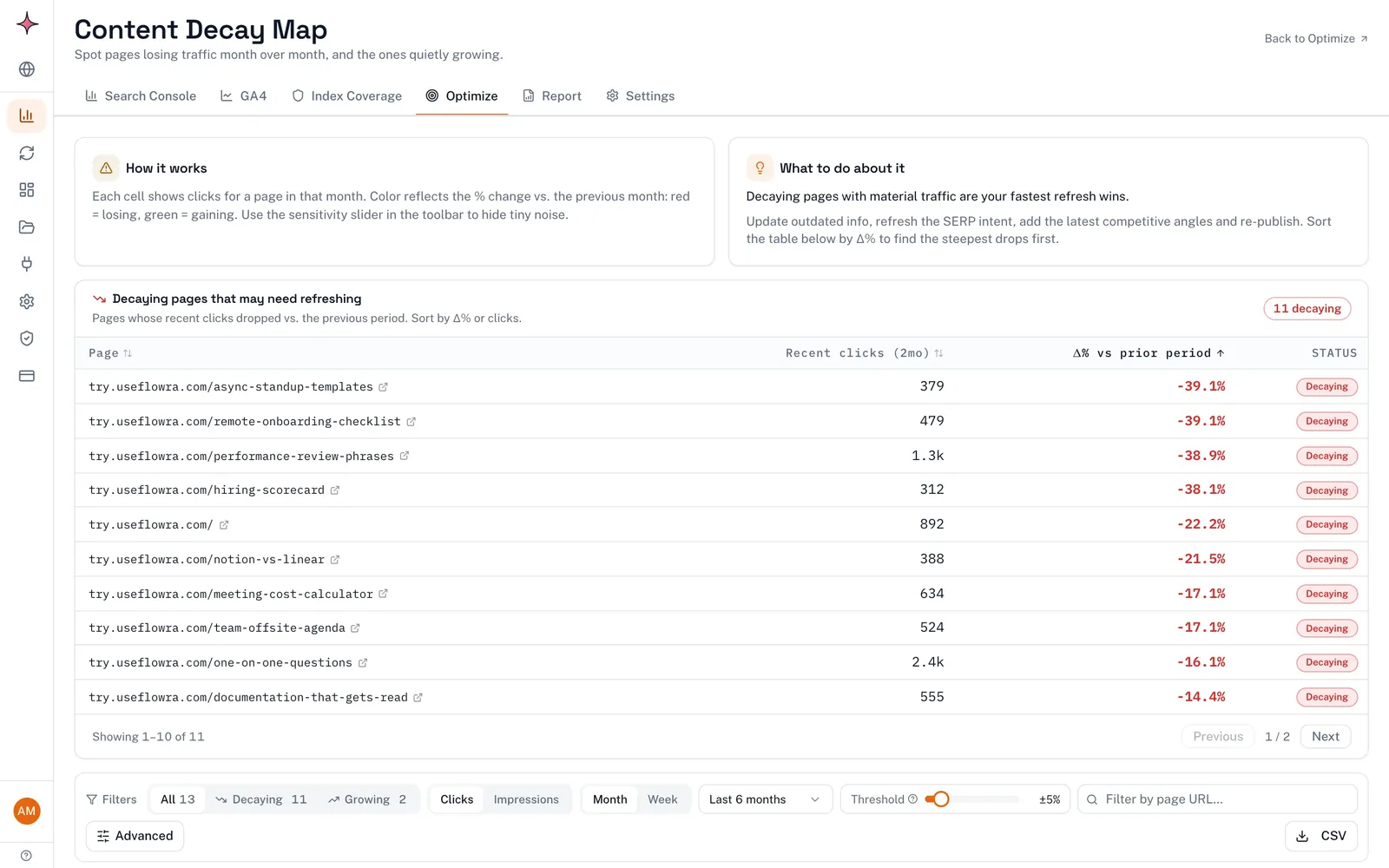
The slowest part of this template is copying Search Console numbers in and doing it all again next quarter. To skip that, connect Search Console to Flowra. The Free plan covers one site and includes a basic content decay report. Its content decay report lists pages whose clicks and impressions are falling against the previous period, which is the Refresh rule without the formula, and puts them in a queue to fix.
On the Pro plan, the keyword cannibalization report does the Merge column’s job. It lists queries where two or more of your pages compete.
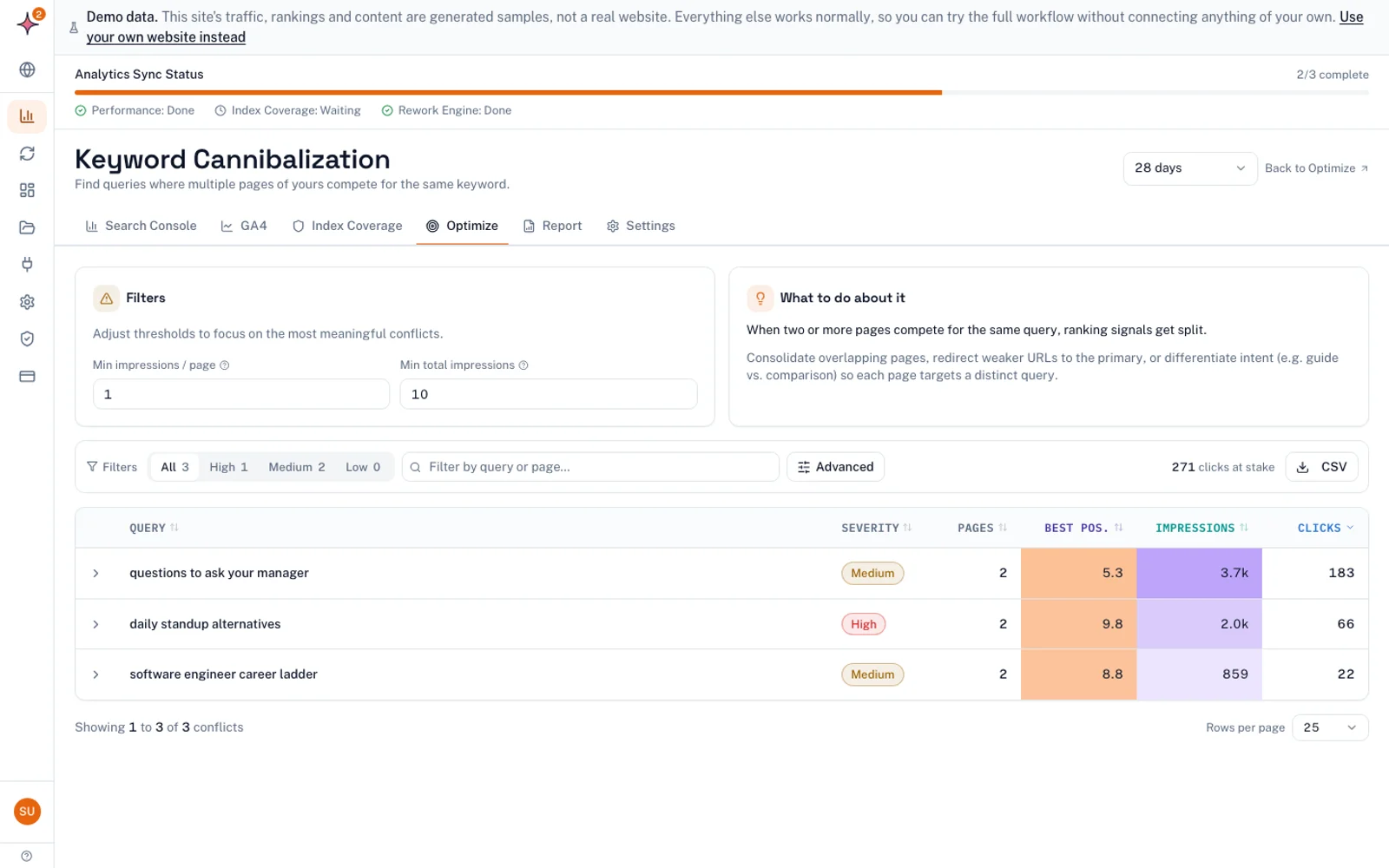
Flowra has no backlink data, so keep a backlink tool or the Search Console Links report for the referring domains column. Connect Search Console and see your decaying pages.
Frequently asked questions
What is a content audit?
A content audit is a page-by-page review of a site’s content: what exists, how each page performs in search and for the business, and what to do with it. The result is a decision for every page (keep, refresh, merge, redirect or remove), each with an owner and a due date. Without decisions, it is only an inventory.
How often should you do a content audit?
For most sites, a full audit once a year is enough, with a quarterly check of your top pages and any pages losing clicks. Sites that publish a lot, or that depend on a few high-traffic pages, should check for falling traffic monthly. Always audit before a migration or redesign.
Do I need to audit every page?
Only for a migration or redesign, where every URL needs a decision or it may break. For a traffic audit, start with one section or with the pages that had impressions in Search Console. Then add the pages a crawl finds that Search Console never reported, because those are often the ones to remove.
When is a content audit most useful?
A content audit is most useful before a site migration or redesign, when you need every URL and its destination. It also helps after a traffic drop, to find which pages fell and why. And it is worth doing before you plan new content, so you fix what you have before writing more.
Can I use the content audit template in Google Sheets?
Yes. Upload the .xlsx file to Google Drive and open it with Google Sheets, or use File > Import in a blank sheet. After importing, check that the Your decision dropdown and the Suggested action formula still work.